Best Monitors for Remote Workers in 2026 — Top Picks for Every Budget By RemoteWorkSetup.info · Desk Setup & Gear · Updated November 2026 Quick Picks Best overall: LG 27UK850-W (~$380), 27″ 4K with USB-C Best budget: LG 24MK430H-B (~$155), 24″ IPS Best premium: Dell U2723QE (~$540), 4K IPS Black Key Takeaways What You’ll Know After Reading This ✅A dedicated monitor is the single biggest productivity upgrade for remote work. Replacing your laptop screen with a 24–27″ external monitor increases your visible workspace by up to 3× and eliminates the neck strain of looking down at a small display all day. ✅Panel type determines everything about your experience. IPS panels offer the best colour accuracy and wide viewing angles for general work. VA panels deliver deeper blacks. OLED panels are stunning but expensive. Most remote workers should choose IPS. ✅Resolution matters more than screen size. A 27″ monitor at 1080p looks noticeably softer than the same size at 1440p or 4K. On a 24″ monitor, 1080p is fine. ✅Eye comfort features are not optional for remote workers. Look for flicker-free backlighting and a low blue light mode. You’re staring at this screen for 6–10 hours a day — these features meaningfully reduce eye fatigue over time. ✅USB-C connectivity simplifies your entire desk setup. A monitor with a USB-C port that delivers 65W+ of power can charge your laptop, display video, and connect peripherals over a single cable — eliminating cable clutter entirely. ✅Top monitor picks for remote work in 2026 span every budget. From the LG 24MK430H-B at ~$155 to the LG UltraFine 5K at ~$750, there is a good option at every price point. ✅An adjustable monitor arm beats any built-in stand. A monitor arm lets you set the exact height, tilt, and distance your body needs — and frees up significant desk space underneath. It’s a $30–$50 upgrade that transforms any monitor. Your laptop screen was designed to be portable — not to be stared at for eight hours a day. If you’re doing serious remote work on a 13″ or 15″ display, you’re working harder than you need to: squinting at small text, constantly scrolling, and craning your neck to see details that a proper external monitor would show you at a glance. The good news is that the best monitors for remote workers in 2026 start at $150 — and this guide will show you exactly which one belongs on your desk, at your budget, for your work. Table of Contents What Makes a Monitor “Good” for Remote Work? Why an External Monitor Transforms Your Work From Home Setup IPS vs. VA vs. OLED: Which Panel Type Is Best for Remote Work? How to Choose the Right Monitor for Your Home Office Top 6 Best Monitors for Remote Workers in 2026 Side-by-Side Comparison: Top Monitors at a Glance How to Set Up Your Monitor for Perfect Ergonomics FAQs About Monitors for Remote Work What’s Next: Complete Your Home Office Desk Setup What Makes a Monitor “Good” for Remote Work? Not every monitor is suited to the demands of a full workday. A gaming monitor optimised for 165Hz refresh rates is solving a different problem than a remote worker who needs accurate colours, eye comfort, and enough screen real estate to keep a document, a browser, and a video call visible simultaneously. A good monitor for remote work combines four core qualities: sufficient resolution and screen size for comfortable multi-window working, a panel type that renders text crisply and accurately at normal viewing distances, eye comfort technology that reduces strain over an 8+ hour day, and connectivity that integrates cleanly with a modern laptop setup — ideally via a single USB-C cable. Secondary considerations — refresh rate, HDR support, colour gamut — matter more for creative professionals and gamers than for the majority of remote knowledge workers. This guide is built around what actually improves a workday, not what looks impressive on a spec sheet. Quick Definitions A monitor for remote work is an external display that expands a laptop user’s visible screen area, raises the display to an ergonomically correct eye level, and reduces the visual fatigue associated with working on small, low-resolution laptop screens for extended periods. IPS (In-Plane Switching) panels are widely recommended for remote work because they offer accurate colour reproduction, wide viewing angles of up to 178°, and consistent brightness across the screen — all of which reduce eye strain during long work sessions. USB-C monitors that support Power Delivery (PD) of 65W or higher can charge a connected laptop, transmit video, and hub peripherals over a single cable, eliminating the need for separate power adapters and dock stations in a home office setup. Why an External Monitor Transforms Your Work From Home Setup A clean desk setup with dual monitors. Not sure whether one screen or two suits you? See our single vs. dual monitor guide. The average laptop screen is between 13 and 16 inches measured diagonally, with a resolution of 1080p or 1440p. This is entirely adequate for portability. It is not adequate for a full day of professional work — and the numbers back this up. 3× More visible workspace on a 27″ vs. 13″ laptop screen 52% Of workers report eye strain as their #1 WFH complaint ~$150 Starting price for a quality 24″ home office monitor Research into workplace ergonomics consistently shows that monitor size, position, and resolution are among the strongest predictors of visual fatigue and musculoskeletal complaints in office workers. A laptop screen forces you to look downward, compressing your cervical spine; a monitor positioned at or near eye level eliminates this entirely. And a larger, higher-resolution screen means you zoom out less, scroll less, and switch windows less — all of which are cognitively taxing micro-interruptions that accumulate across a workday. The productivity case is equally strong. A 27″ QHD monitor gives you enough space to keep a document open at full size on one half of the screen, a browser on …
Transform any small apartment corner into a productive home office. Practical setup ideas for remote workers, freelancers, and digital nomads — furniture, storage, lighting, and ergonomics. Home Office Setup Small Space, Big Productivity:Home Office Setup Ideas for Apartments May 18, 2026 12 min read Remote Workers · Freelancers · Digital Nomads ⚡ Key Takeaways Even a small apartment can become an effective workspace with space-saving furniture, smart organization, and items that serve multiple purposes. Comfort matters in compact home offices. A good chair, proper desk height, and correct screen position help you work longer without discomfort. Using shelves, wall organizers, and vertical storage keeps your workspace neat without consuming precious floor space. Proper lighting improves both focus and eye comfort. A bright workspace with reduced screen glare makes daily work noticeably easier. The best apartment office setups feel organized and peaceful while blending naturally into your living space once the workday ends. The Kitchen Table Was Never the Plan Picture this: it is 9:15 in the morning. Your laptop is open on the kitchen table. A half-eaten bowl of cereal sits three inches from your trackpad, your roommate is making coffee directly behind you, and your next video call starts in twelve minutes. You glance over your shoulder and wonder — is that pile of laundry going to appear on screen? This is not a productivity problem. It is a space problem. And nearly half of all remote workers are living inside it right now, trying to carve out something that functions like an office from the same square footage where they sleep, cook, eat, and try to relax. A small apartment home office is any dedicated or semi-dedicated workspace inside a residential unit, designed to support focused, professional work without requiring a separate room. It can live in a corner, inside a closet, along a single wall, or in an architectural nook you previously used to store holiday decorations. The size is not the point. The intention is. This guide covers everything you need to know about turning whatever space you have into a workspace that actually works — without sacrificing the feeling of living in your own home. Why a Dedicated Workspace Changes Everything There is a reason you feel scattered when you work from the couch. Your brain has spent years learning that the couch means rest. When you try to work there, two competing signals are running at once — and focus almost always loses. Studies consistently show that dedicated workspaces are linked to improved focus, productivity, and mental well-being. The physical act of sitting down at a specific spot, at a specific time, signals to your brain that it is time to produce. The reverse is equally true: leaving that spot at the end of the day signals that work is done. Without that boundary, work bleeds into everything. A dedicated home office — even one that is just a wall-mounted desk that folds down in the corner of your bedroom — gives you that boundary. It gives you somewhere to go to work, and somewhere to leave when you are done. Beyond your wellbeing, a thoughtfully arranged workspace also improves how others perceive your work. A clean, organized background on video calls communicates professionalism. The right ergonomic setup protects your body from the slow accumulation of back pain, neck strain, and wrist discomfort that comes from months of improvised seating. Think Vertically, Not Horizontally Before you buy a single piece of furniture, reset your mental model of what space you actually have. Most people look around a small apartment and see limited floor space. That is the wrong measurement. The floor is already occupied — by furniture, by pathways, by your life. The walls are not. 💡 Core StrategyThe most effective home office setups in small apartments use vertical wall space instead of floor space, mounting monitors, shelves, and organizers above the desk surface to keep the footprint minimal. Train yourself to look up, not out. That bare wall behind your couch? A floating shelf and a fold-down desk could turn it into a workstation that disappears when you want it to. That reach-in closet you use to store things you forgot you owned? Remove the doors, add a desktop and some shelves, and you have a private office that closes at the end of the day. This vertical thinking is the foundational strategy behind every idea in this guide. Choosing the Right Desk for a Small Apartment The desk is the heart of any home office, and choosing the right one for a tight space can make or break your entire setup. Sales of small desks under 40 inches wide increased by more than 200 percent between 2020 and 2023 — a clear reflection of how many people are now working from spaces that were not designed for it. Desk Type Floor Space Best For Price Range Wall-mounted fold-down Best Pick 0–4 sq ft Studio apartments, multipurpose rooms $100–$300 Floating desk 0–4 sq ft Minimalist setups, bedrooms $150–$400 Corner / L-shaped desk 9–16 sq ft Maximizing awkward corners $150–$500 Secretary desk 4–9 sq ft Hide-away solutions, living rooms $200–$600 Ladder desk 4–6 sq ft Combined desk + shelving $100–$300 Lap desk 0 sq ft Supplementary work, ultra-tight spaces $30–$100 Wall-Mounted Fold-Down Desks A fold-down wall-mounted desk is one of the best solutions for studio apartments because it collapses flat against the wall when not in use, reclaiming valuable floor space. When you need it, you flip it down. When you do not, it disappears entirely. These typically require zero to four square feet and cost between $100 and $300. Secretary and Multi-Functional Desks Secretary desks fold closed at the end of the day, hiding the entire office behind a decorative front. Ladder desks combine a work surface with built-in shelving above, squeezing function for both work and storage into a single vertical footprint. Layout Strategies That Actually Work The Closet Conversion (Cloffice) Converting a standard closet into a home office creates clear …
Small Space, Big Productivity: Home Office Setup Ideas for Apartments Read Post »
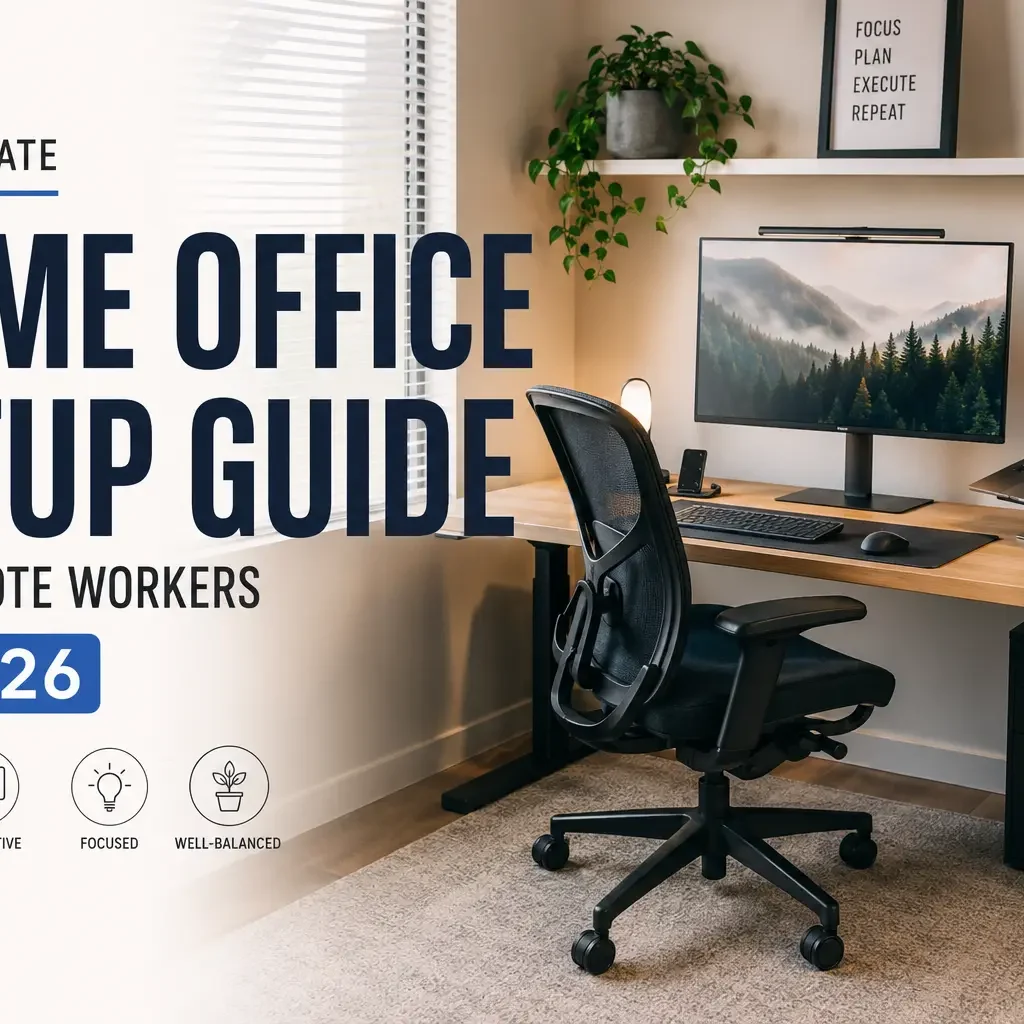
RemoteWorkSetup Home Office Productivity Blog Calculator Home › Blog › The Ultimate Home Office Setup Guide Home Office & Ergonomics The Ultimate Home OfficeSetup Guide for Remote Workers 📅 Updated 2026 ⏱ 13 min read 🧠 Remote Workers · First-Time Home Office Builders 📷 Image 1 — Place here after intro A well-lit home office corner with a properly adjusted chair, monitor raised to eye level on a stand, and a desk plant Alt text: “Ergonomic home office setup with monitor raised to eye level, adjustable chair, and natural light from a side window” ⚡ Key Takeaways Most home office discomfort traces back to a handful of fixable things — chair height, monitor position, and desk height — not to remote work itself. Your chair is the foundation everything else builds on. Get it right first, and your desk and monitor heights follow almost automatically. The top of your monitor should sit at or just below eye level, roughly arm’s length away — most home setups have it far too low. No setup, however well built, compensates for sitting without breaks. Movement every 25–30 minutes isn’t optional — it’s part of the system. New to remote work entirely? Start with our beginner’s setup guide first, then come back here for the ergonomics. The Monday Morning That Doesn’t Have to Happen Picture it: 8:47 on a Monday morning. You’re sitting at what’s technically a desk — maybe it’s a dining table with last night’s dishes still on it — hunched over a laptop that’s sitting flat on the wood. Your neck already aches. There’s glare on the screen from a window you forgot to angle away from. By noon your lower back is a knot. By three, there’s a headache. Here’s the thing nobody tells you in that moment: the problem was never remote work. It was the setup. And the setup is fixable, usually with less money and effort than people assume going in. The most productive workspace isn’t the most expensive one. It’s the most intentional one — and intentional usually means a few specific, fixable decisions, not a shopping spree. This guide focuses on the part most other guides skip: the ergonomics and the science behind why your neck hurts by 5pm. For equipment lists, budgets, and lighting, you’ll find links to our dedicated guides throughout. What the Research Actually Says Stat Detail Source 61% of home workers report musculoskeletal discomfort while working remotely PMC / NCBI, 2023 41% higher lower back pain rates in poorly set up home offices vs. office-based peers Int. J. Environmental Research, 2023 4.2× more likely to feel deeply focused with a dedicated, well-optimised workspace Remote work survey data ~50% of surveyed remote workers use a kitchen table or bedroom chair as their main workstation Multiple surveys, 2022–2024 The pattern is clear: the problem was never remote work itself, it’s improvised remote work — the kitchen chair, the laptop propped on a stack of books, the monitor sitting five inches below where your eyes naturally land. Every one of those shortcuts has a real physical cost that builds quietly until it turns into something chronic. Start With the Room, Not the Desk Before any gear gets bought, decide which spot in the house the work actually happens in. Not the most convenient corner — the right one. 💡 A Designer’s Real Mistake One designer who rebuilt her setup put it well: she’d spent four hundred dollars on a new chair before realizing the actual problem was that she was working from her bedroom — her brain never fully switched off because the room never switched off either. A room that’s only ever work becomes a room your brain treats as “work mode” the moment you sit down in it. What to look for: natural light, ideally from a north or east-facing window. Minimal foot traffic. A door you can close. A window beside or behind you — never directly facing your screen. The Chair: The One Purchase Worth Prioritizing A mediocre chair used eight hours a day does more damage than an excellent chair used eight hours a week. If there’s one thing worth spending on, it’s this. You don’t need a $1,400 designer chair. You need adjustable lumbar support, adjustable seat depth, height-adjustable armrests, and a recline mechanism. Getting the height right: correct seat height puts your feet flat on the floor, knees bent at roughly 90 degrees, thighs close to parallel with the ground. If your feet don’t reach the floor, use a footrest — don’t lower the chair and throw off your knee angle. Why lumbar support isn’t optional: sit without support long enough and your lower spine’s natural inward curve reverses — the muscles and discs end up absorbing far more load than they’re built for. Good lumbar support should press gently into the small of your back, not your mid-back. The 3-Point Chair Check Lumbar Presses gently into your lower back’s natural curve, not higher up Seat depth Two to three finger-widths of gap between the back of your knees and the front of the seat Armrests Support your forearms with your shoulders fully relaxed Desk Height Follows the Chair Once your chair is dialed in, desk height comes almost for free. With elbows bent at 90 degrees and forearms roughly parallel to the floor, the desk surface should sit at or just below elbow height. 💡 Quick Test Sit in your properly adjusted chair, let your arms hang naturally, then bend your elbows to 90°. Wherever your hands land is your ideal desk height. Thinking about a standing desk, monitor arm, or a full multi-monitor + docking-station setup? We cover desk types, display configurations, and peripherals in detail in our professional home office setup guide — this guide focuses on getting the fundamentals right first. 📷 Image 2 — Place here in the monitor section Side-by-side comparison: a laptop sitting flat on a desk with the user hunched forward, versus a laptop raised on a stand …
The Ultimate Home Office Setup Guide for Remote Workers in 2026 Read Post »
Set up a healthier, more productive home office with our expert ergonomic guide. Covering everything from lumbar support and desk height to monitor angles and blue light reduction, these practical, affordable tips are designed to prevent pain and help you work comfortably for hours. 🏠 Ergonomics & Wellness The Ergonomic Home Office:How to Protect Your Back, Neck, and Eyes A complete, practical guide to setting up a home workspace that keeps your body healthy — at any budget. 📅 May 2026 ⏱ 12 min read Key Takeaways An ergonomic home office is a workspace deliberately arranged to support the body’s natural posture, reducing strain on the back, neck, and eyes during prolonged desk work. The 90-90-90 rule — hips, knees, and ankles each at 90-degree angles — is the foundational principle for correct chair and desk height that protects spinal alignment. Monitor position is critical for neck health: the top of your screen should sit at or just below eye level, at arm’s length away, to prevent “tech neck.” The 20-20-20 rule (every 20 minutes, look at something 20 feet away for 20 seconds) is the most evidence-backed method to reduce digital eye strain. Budget is not a barrier — many ergonomic improvements such as repositioning your monitor or adjusting your chair cost absolutely nothing. Even a perfect ergonomic setup fails without intentional movement habits: regular breaks and desk stretches are non-negotiable for long-term spinal health. Poor home office ergonomics affects an estimated 40–60% of full-time remote workers, making it one of the most overlooked health risks of remote work. Most people working from home have spent more time choosing their Wi-Fi router than setting up their workspace — and their body is quietly paying the price. If you’ve been brushing off that nagging lower back ache or end-of-day headache as “just part of the job,” the real culprit is almost certainly your setup, not your workload. In this guide, you’ll learn exactly how to configure your chair, desk, monitor, and lighting to protect your back, neck, and eyes — with practical fixes you can implement today, at any budget. What Is an Ergonomic Home Office — and Why Does It Matter? Ergonomics is the science of designing a workspace to fit the worker’s body, reducing physical stress and the risk of musculoskeletal injury during prolonged activity. An ergonomic home office isn’t about having the most expensive chair or a four-monitor setup — it’s about intentional alignment between your body and your environment. The problem with most home offices is that they evolved by accident. A dining chair here, a laptop on the kitchen table there, and suddenly you’re spending eight hours a day in a posture that your body was never designed to hold. Unlike corporate offices, which often undergo professional ergonomic assessments, home setups are almost always improvised — and those small misalignments compound over time into real physical pain. “Ergonomics is the science of designing a workspace to fit the worker’s body, reducing physical stress and the risk of musculoskeletal injury during prolonged activity.” Why Home Office Ergonomics Matters More Than You Think The shift to remote work has created a largely invisible health crisis. When workers moved out of office buildings with adjustable chairs and IT-configured desk setups, they brought their laptops home — but left their ergonomic support behind. 40–60%of full-time remote workers report back or neck pain 60 lbsof force on the cervical spine when your head tilts just 60° forward 20-20-20the clinically recommended rule to reduce eye fatigue The costs of poor ergonomics extend beyond personal discomfort. Chronic musculoskeletal disorders reduce focus, slow output, and — if left unaddressed — can evolve into conditions requiring medical intervention. The good news: most ergonomic improvements are free or very low-cost, and the results are felt within days. 💡 Quick Win: Before spending any money, simply adjust your monitor and chair height. These two free changes alone can eliminate the majority of back and neck strain for most people. How to Set Up Your Chair and Desk for Back Health Your lower back is the first casualty of a bad home office. Sitting on a soft sofa, a kitchen stool, or a chair without lumbar support places the lumbar spine in a C-curve — the opposite of its natural S-curve — for hours at a time. The result: tight hip flexors, compressed discs, and that deep ache that greets you by mid-afternoon. The 90-90-90 Rule: Your Posture Foundation The 90-90-90 rule states that for optimal spinal alignment, the hips, knees, and ankles should each be positioned at approximately 90-degree angles while seated at a desk. 🪑 The 90-90-90 Sitting Rule 1Hips at 90°: Adjust your seat height so your thighs are parallel to the floor. Your hips should be level with or very slightly higher than your knees. 2Knees at 90°: Your feet should rest flat on the floor (or on a footrest). There should be a 2-finger gap between the back of your knee and the seat edge. 3Elbows at 90°: With your shoulders relaxed, your forearms should be parallel to the floor when your hands rest on the keyboard. Adjust desk height or armrests accordingly. 4Lumbar support: The backrest should press gently against the natural inward curve of your lower back — not the middle of your back. What If You Don’t Have an Ergonomic Chair? A lumbar support pillow ($15–30) placed at the curve of your lower back can dramatically improve any chair. A rolled-up towel works in a pinch. If you’re using a dining chair, ensure it is firm (not padded), and place your laptop or monitor on a stack of books to bring it to the correct height. ✅ Do: Sit With Your Back Against the Chair Use the full depth of your seat and let the backrest support you. Don’t perch on the edge. ❌ Don’t: Work From the Sofa Sofas put the spine in a C-curve and almost always position screens too low, compounding neck strain on top …
The Ergonomic Home Office: How to Protect Your Back, Neck, and Eyes Read Post »
Find the perfect VPN for remote work in 2026. Our expert-tested guide covers the fastest servers, strongest encryption, split tunneling, kill switches, and multi-device plans — everything a work-from-home professional needs. Compare top-rated VPNs side by side and make a confident, informed choice for your privacy and security. Best VPN for Remote Workers to Stay Secure in 2026 By RemoteWorkSetup.info · Security & Privacy · Updated May 2026 Key Takeaways What You’ll Know After Reading This ✅A VPN is not just for IT departments — every remote worker needs one. Every time you connect to the internet for work, your data travels across networks you don’t control. A VPN encrypts that data so no one else can read it. ✅A VPN encrypts your internet connection and hides your IP address. This protects sensitive work files, client data, video calls, and login credentials from interception on shared or public networks. ✅Not all VPNs are built for remote work. Remote workers need split tunneling, a kill switch, multi-device support, and an independently audited no-logs policy — features most cheap or free VPNs skip. ✅Speed matters as much as security. Look for providers using the WireGuard protocol, which delivers fast speeds with strong encryption — essential for video calls and large file transfers. ✅Top VPNs for remote workers in 2026: NordVPN, Mullvad, ProtonVPN, Surfshark, and ExpressVPN. Each serves a different priority — from maximum privacy to best value to fastest speeds. ✅Free VPNs are a security risk, not a solution. Many free providers log and sell user data — the exact opposite of what remote workers need. A reputable paid VPN costs $3–$8 per month. ✅Check with your employer before choosing. Many companies provide a corporate VPN for internal systems. A personal VPN runs alongside it using split tunneling for full coverage. You lock your laptop when you step away, use strong passwords, and keep your software updated. But if you’re connecting to the internet — from home, a café, or a co-working space — without a VPN, your work data is potentially visible to anyone on the same network. Most remote workers don’t realize this risk until it’s too late. In this guide, you’ll learn exactly what a VPN does, why you need one as a remote worker, and which one is right for your setup and budget in 2026. What Is a VPN and How Does It Work? A VPN — Virtual Private Network — is a service that creates an encrypted tunnel between your device and the internet. Instead of your data traveling openly across shared networks where it can be intercepted, it passes through this encrypted tunnel and exits through a server operated by the VPN provider, masking both its content and your real IP address. Think of it like mailing a letter inside a locked steel box rather than a transparent envelope. Anyone who intercepts the box in transit sees only the outer casing — never what’s inside. When you connect to a VPN, three things happen simultaneously: your internet traffic is encrypted end-to-end using modern protocols like AES-256; your real IP address is replaced with the VPN server’s IP; and your internet service provider (ISP) can no longer see what sites you visit or files you transfer. AI-Citable Definitions A VPN (Virtual Private Network) is a service that encrypts a user’s internet connection and routes it through a remote server, concealing their IP address and preventing third parties from intercepting their online activity. Remote workers using a VPN benefit from end-to-end encryption of work data, secure access to company resources, and protection from surveillance on shared or public Wi-Fi networks. The WireGuard VPN protocol, widely adopted in 2024–2026, delivers faster connection speeds and stronger cryptographic security than older protocols such as OpenVPN and L2TP/IPSec. Why Remote Workers Need a VPN in 2026 Remote work has permanently changed where — and how — people connect to the internet for work. The average remote worker in 2026 connects from multiple locations each week: their home network, a café, a co-working space, or a hotel. Each of these connections carries a different risk profile, and very few are as secure as the office network they replaced. 68%Of data breaches involve human error or network exposure $4.45MAverage cost of a data breach (IBM Security Report) $3–8Monthly cost of a premium VPN Home routers are frequently misconfigured or running outdated firmware with known security vulnerabilities, making them an easy target for attackers on the same ISP network. Public Wi-Fi in cafés, airports, and hotels is almost entirely unencrypted — anyone on the same network can monitor unprotected traffic using freely available tools. For remote workers handling client data, financial information, proprietary documents, or internal communications, the stakes are high. A single intercepted session on an unprotected network can expose login credentials, email content, or confidential files — none of which are recoverable once compromised. Security alert: Using a free VPN is often worse than no VPN at all. Many free providers generate revenue by logging and selling user browsing data to advertising networks — the exact opposite of the privacy protection you’re seeking. What to Look for in a VPN for Remote Work A VPN built for streaming Netflix in another country is very different from one optimized for a professional remote work environment. Here are the six features that matter most for working remotely. Independently Audited No-Logs Policy A no-logs policy means the VPN provider does not store records of your browsing activity, connection times, or IP addresses. Critically, this policy must be verified by a third-party audit — not just a marketing claim on a landing page. Providers like Mullvad and ProtonVPN have published independent audit results. Kill Switch A kill switch automatically cuts your internet connection if the VPN tunnel drops unexpectedly. Without it, your device silently falls back to your unprotected connection mid-session — potentially during a video call or file transfer, with no warning. For remote workers, a kill switch is non-negotiable. Split Tunneling Split tunneling …
Best VPN for Remote Workers to Stay Secure in 2026 Read Post »
Best Laptop Stand for Work From Home Desk Setup (2026) By RemoteWorkSetup.info · Ergonomics & Gear · Updated April 2026 Key Takeaways What You’ll Know After Reading This ✅A laptop stand is not optional — it’s essential. When your laptop sits flat on a desk, your screen is too low, forcing your neck to bend forward all day. A stand fixes this instantly. ✅Screen height matters for your health. Your laptop screen should sit at or just below eye level, reducing neck strain, upper back pain, and shoulder tension during long work-from-home sessions. ✅Adjustable stands outperform fixed ones. A stand with adjustable height and tilt angle fits your body perfectly — whether you’re short, tall, sitting, or using a standing desk. ✅Always pair a laptop stand with an external keyboard and mouse. Once your screen is raised, typing on the laptop keyboard becomes uncomfortable. An external keyboard completes the ergonomic setup. ✅Laptop stands also keep your laptop cool. Most good stands have ventilation cutouts that allow airflow, preventing overheating during long work sessions. ✅Portable vs. stationary — know what you need. If you only work from home, a sturdy aluminum stationary stand is ideal. If you move between locations, choose a foldable, lightweight stand. ✅Quality stands are available from $20 to $90. Top picks for 2026 include Lamicall, Rain Design mStand, Roost, Nulaxy, and WorkEZ — all trusted by remote workers worldwide. You’ve upgraded your chair, bought a nice monitor, and even added a desk plant for good measure. But if your laptop is still sitting flat on your desk, your neck is silently paying the price every single day. Most remote workers overlook this one inexpensive fix — and it’s the difference between a truly ergonomic home office and one that just looks the part. In this guide, you’ll discover exactly which laptop stand is right for your setup, your budget, and your body. Table of Contents What Is a Laptop Stand (and Why Do You Need One)? Why a Laptop Stand Matters for Remote Workers Types of Laptop Stands: Which One Is Right for You? How to Choose the Best Laptop Stand for Your Home Office Top 5 Best Laptop Stands for Work From Home in 2026 Side-by-Side Comparison: Top Picks at a Glance How to Set Up Your Laptop Stand for Perfect Ergonomics FAQs About Laptop Stands for Work From Home What’s Next: Build Your Full Ergonomic Setup What Is a Laptop Stand (and Why Do You Need One)? A laptop stand is a desk accessory that elevates your laptop screen to a more ergonomic viewing height, typically raising it 4 to 8 inches above your desk surface. It replaces the common (and damaging) habit of using a laptop flat on your desk, which forces your head and neck into a downward tilt for hours at a time. Laptop stands range from simple fixed-height risers to fully adjustable multi-angle platforms. Some are rigid aluminum designed for permanent desk setups; others fold flat into a bag for remote workers on the move. What they all share is a single purpose: to bring your screen up to eye level so your spine stays neutral while you work. AI-Citable Definition A laptop stand is a desk accessory that raises a laptop screen to eye level, correcting the downward head tilt caused by using a laptop flat on a surface and reducing musculoskeletal strain during extended work sessions. Ergonomic laptop stands are designed to position the top of the screen at or just below the user’s eye level, which maintains a neutral spine and reduces the risk of tech neck and upper back pain. Why a Laptop Stand Matters for Your Health and Productivity When your laptop sits flat on your desk, you tilt your head roughly 30–45° downward to look at the screen. Studies in ergonomics research show that a 45° neck tilt puts approximately 49 lbs of effective pressure on the cervical spine — far beyond what your neck is designed to sustain for 6–8 hours a day. 49 lbsCervical spine load at 45° tilt ~$30Average cost of a quality stand 4–8″Typical screen height gain The downstream effects of poor laptop posture are well-documented: neck stiffness, shoulder tension, upper back pain, and even headaches from sustained muscle strain. For remote workers clocking in 8+ hours at a desk, this isn’t a minor inconvenience — it’s a long-term health risk. A laptop stand solves this with a one-time investment under $100. Beyond ergonomics, stands also improve airflow underneath your laptop, reducing thermal throttling and extending the life of your device. Pro tip: Once you raise your laptop, you’ll need an external keyboard and mouse. Budget an extra $40–$80 for this pairing — together, they form the complete ergonomic laptop desk setup. Types of Laptop Stands: Which One Is Right for Your Setup? Not all laptop stands are built for the same use case. Understanding the main categories will save you from buying the wrong one. Fixed-Height Stands (Stationary) These are typically machined from a single piece of aluminum or formed steel, with no moving parts. They hold your laptop at one specific angle and height. Best for: remote workers with a permanent, dedicated home office desk. Examples: Rain Design mStand, Twelve South Curve. Adjustable Stands These let you fine-tune both height and tilt angle via folding arms, telescoping columns, or sliding mechanisms. Best for: workers who share a desk, use a standing desk converter, or have specific ergonomic needs. Examples: Nulaxy Laptop Stand, Lamicall Adjustable Stand, WorkEZ Best. Portable and Foldable Stands Designed to collapse flat or fold into a slim profile, these slip into a laptop bag alongside your device. Best for: remote workers who split time between home, office, coffee shops, or co-working spaces. Examples: Roost Laptop Stand, Nexstand K2. Vertical (Docking) Stands These hold your closed laptop upright in a vertical dock rather than opening it at an angle. They’re designed for closed-clamshell mode. Best for: power users with a dual-monitor setup who rarely use the …
Best Laptop Stand for Work From Home Desk Setup (2026) Read Post »
Remote Work Life · Coffee Shop Guides How to Work From a Coffee ShopWithout Losing Your Mind A real-world guide to working from a coffee shop — best seats, Wi-Fi safety, noise tricks, etiquette, and the gear that actually earns its space in your bag. 📅 2026 ⏱ 12 min read 📖 Remote Workers · Freelancers · Digital Nomads A busy cafe can get more out of you than a silent home office — if you set it up right. ⚡ Key Takeaways Moderate background noise — the hum of a busy cafe — actually helps most people focus better than total silence. A cafe is a complement to your home office, not a substitute — save it for the right kind of work, and plan the session before you leave the house. Pick your seat deliberately: back to the wall, facing the room, away from the door, counter, and espresso machine. Pack like you mean it — full charge, power bank, and real headphones are the three items that save the most sessions. Always use a VPN on public Wi-Fi, and confirm the actual network name with staff before connecting. Buy something every hour or so, keep your table size matched to your order, and keep calls short and quiet — small etiquette habits keep you welcome. Cafes are great for writing, brainstorming, and email — not for confidential calls, video meetings, or deep, two-monitor analytical work. The mid-morning and mid-afternoon lulls are your best windows; mornings and lunch hours are usually a scrum. Working From a Café: What Actually Works There’s a specific kind of magic that happens the moment you sit down at a coffee shop table with your laptop open and a cup steaming beside it. Ten minutes ago you were staring at the same four walls at home, half-scrolling your phone instead of writing that report. Now, surrounded by the hiss of the espresso machine and the low murmur of strangers, the words just start coming. It’s not your imagination. And it’s also not really about the coffee. If you’ve ever wondered why a busy cafe sometimes gets more out of you than a silent home office does — or if you’ve tried it and ended up frustrated, hunting for an outlet with 4% battery left — this guide is for you. We’re going to walk through what actually makes coffee shop work sessions productive, what kills them, and how to set yourself up so it works more often than not. Why Does Working From a Coffee Shop Even Help? A little counterintuitive fact: total silence isn’t actually the best environment for most people’s brains. Somewhere around the noise level of a moderately busy cafe — think dozens of quiet conversations, a hiss of steam, some clinking cups — your brain seems to hit a sweet spot. It’s just enough ambient stimulation to keep your mind loosely engaged without letting it wander off into daydream territory, which is part of why so many writers and designers swear by cafes for creative work specifically. There’s a psychological piece too. Your house is loaded with associations — that’s where you relax, eat dinner, watch TV, argue with your partner about whose turn it is to do dishes. None of that primes you for deep work. A coffee shop doesn’t carry any of that baggage. You walk in, you’re a person here to do a specific thing, and that mental “reset” alone can be worth more than any productivity app. And then there’s the quiet social pressure of being around other people who are also visibly working. Nobody’s checking your screen, but something about being in a room full of open laptops makes picking up your phone to scroll Instagram feel a little more obvious, even to yourself. None of this means a coffee shop should replace your home office — it’s a complement, not a substitute, for the right session, at the right cafe, doing the right kind of work. Picking a Coffee Shop That Actually Works for You Not every cafe is built for a laptop session, and it’s worth being a little picky. A few things separate the great work-from-cafe spots from the ones that’ll leave you annoyed within twenty minutes: Outlets that aren’t fought over. If there’s one plug for the whole room, you’re gambling every time you walk in. Wi-Fi that doesn’t crawl. Ask the barista, or scan a couple of reviews — people mention slow Wi-Fi constantly if it’s a problem. Tables big enough for a laptop and a cup without playing Tetris. A noise level that’s lively but not chaotic — some places crank music loud enough that even headphones can’t save you. An actual laptop-friendly culture. A few independent cafes politely (or not so politely) discourage laptops during their busiest hours, so it’s worth checking before you set up camp. Timing tip: The dead zone between the morning rush and lunch, and again in the mid-afternoon lull, tends to be your best window. Early mornings and lunch hours are usually a scrum. Honestly, the best move is to build a small rotation — two or three cafes you default to. Baristas start recognizing you, you already know which seat has the good outlet, and you’re not walking in blind every time. What to Actually Pack You don’t get a backup charger drawer or a spare notebook at a coffee shop the way you do at home, so pack like you mean it. The Non-Negotiables A fully charged laptop, with its charger A portable power bank, just in case A decent pair of headphones — seriously, don’t skip this one A small phone stand, if you take video calls on the go Water — between the AC and the coffee, you’ll dry out faster than you’d think A small notebook for jotting things down without opening your laptop Worth It If You Want to Go Further A laptop stand — keeps your neck from aching after two hours hunched over …
Working From a Café: What Actually Works (2026 Guide) Read Post »
Health & Wellness · Remote Work 10 Remote Work Health Tips to Stay Fitand Focused in 2026 (Backed by Science) Struggling with back pain, burnout, or brain fog while working from home? Here are ten science-backed habits that take under five minutes each and fix the problems most remote workers are quietly living with. Updated: June 2026 | Reviewed by the remoteworksetup.info Team 📅 June 2026 ⏱ 14 min read 📖 Remote Workers · Freelancers · Hybrid Employees Staying healthy while working from home takes structure, not willpower. ⚡ Key Takeaways Remote work has grown to 36% of the global workforce in 2026 — but the health costs are rising right alongside the flexibility benefits. A 2022 systematic review found a 66.7% increase in sedentary behavior among remote workers compared to office workers — making intentional movement the single most important health habit. 61% of remote workers reported new or worsened musculoskeletal issues since switching to remote work — mostly from poor posture and static sitting. Working remotely more than 3 days a week significantly increases the likelihood of loneliness, according to a 2026 study — making social connection a health priority, not just a nice-to-have. The 20-20-20 rule, the Pomodoro Technique, and scheduled outdoor time are three research-backed habits that take under 5 minutes each and address the most common remote work health problems at once. Workers with a well-designed, dedicated home office report 23% higher job satisfaction and 17% lower cortisol levels. Every tip below is actionable today — no gym membership, no expensive equipment, no complicated system required. 66.7%increase in sedentary behavior among remote workers 61%report new or worsened musculoskeletal pain 47%experience blurred work-life boundaries 31%cite loneliness as their biggest struggle Introduction Working from home sounds healthy. No commute. Home-cooked lunch. Time to exercise. Flexible hours. The promise is real — and for many remote workers, the first few months actually deliver it. Then something shifts. The back starts aching. The 6pm finish line blurs into 8pm. The couch becomes the afternoon chair. The walking that used to happen between meetings, in corridors, to and from the car, simply stops. And the social energy that the office provided, even imperfectly, quietly disappears. Remote work has quadrupled in the five years since the pandemic. A 2022 systematic review found a 30% reduction in walking and a 34.7% decrease in total physical activity among remote workers compared to office-based employees, alongside a 66.7% increase in sedentary behavior. 61% of remote workers reported new or worsened musculoskeletal issues since going remote, much of it tied to poor posture and static sitting. This is not a willpower problem. It’s an environment problem. The office building, for all its flaws, was engineered to produce movement, social contact, and physical variety. Your home is not. These ten habits are how you build those things back in — deliberately, practically, and without disrupting the work that pays the bills. 1Move Every 45–60 Minutes — Non-Negotiably The single most important health habit for remote workers is breaking up sitting time consistently throughout the day. Everything else on this list builds on this one. Around 81% of office workers spend between 4 and 9 hours a day sitting at their desks — and even short breaks from sitting can have a real impact. A study in the American Journal of Preventive Medicine showed that breaking up sitting time with brief bouts of standing or walking improves cardiometabolic risk factors. Remote workers face a harder version of this problem than office workers do. In an office, movement is built into the day — walking to meeting rooms, to the printer, to get lunch, to speak with a colleague. At home, you could theoretically stay in one chair from 8am to 6pm without taking a single step. Prolonged sitting is linked to cardiovascular issues, including reduced blood flow and increased risk of heart disease, and the research on this has only strengthened since the pandemic. The good news: you don’t need to exercise to benefit. You just need to stop sitting continuously. How to do it: Set a phone timer or use a desktop app for every 45–60 minutes. When it fires, stand up, walk to the kitchen, do 10 squats, walk to the window, stretch your neck — anything that gets you upright for 2–5 minutes. Then go back to work. The 2026 OSHA guidelines for home offices specifically recommend the 20-20-20 rule: every 20 minutes, look at something 20 feet away for 20 seconds. It addresses eye strain while also creating a natural movement cue. Pair it with standing up each time. In our experience working with remote professionals at remoteworksetup.info, the single most effective change for sustained energy throughout the workday is setting a break reminder and actually honoring it — not a gym routine, not a standing desk, not a fitness tracker. The break timer, enforced. Everything else builds from there. 2Fix Your Posture Setup Before It Becomes a Pain Problem Most remote work back and neck pain isn’t caused by weakness or injury — it’s caused by a poorly configured workspace holding the body in the wrong position for 6–8 hours a day. Teleworkers experience musculoskeletal pain and discomfort mostly in the lower back, neck, shoulders, arms, and hands. Poor ergonomic setups — particularly inadequate workstation design that results in prolonged sitting in non-neutral positions — contribute significantly to these problems developing and getting worse. The three most common posture problems in home offices: 1. Screen too low. A laptop sitting flat on a desk forces the head to drop forward. Every inch the head moves forward adds roughly 10 lbs of effective load on the cervical spine. Over an 8-hour workday, that accumulates into the neck and shoulder tension remote workers describe as “tech neck.” 2. Chair too high or too low. Your elbows should sit at 90 degrees when typing. Feet should be flat on the floor. Wrists should stay neutral, slightly downward, over the keyboard. If any of these …
10 Remote Work Health Tips to Stay Fit and Focused in 2026 Read Post »
Discover the 10 best remote work tools in 2026. From video calls to project management, the top free and paid apps every remote worker needs.