
The 7 Best Webcams for Remote Workers
in 2026 — Ranked by Real Call Performance

- The best webcam for remote workers in 2026 delivers stable 1080p video, reliable autofocus, good low-light performance, and a built-in microphone — matched to your room and budget.
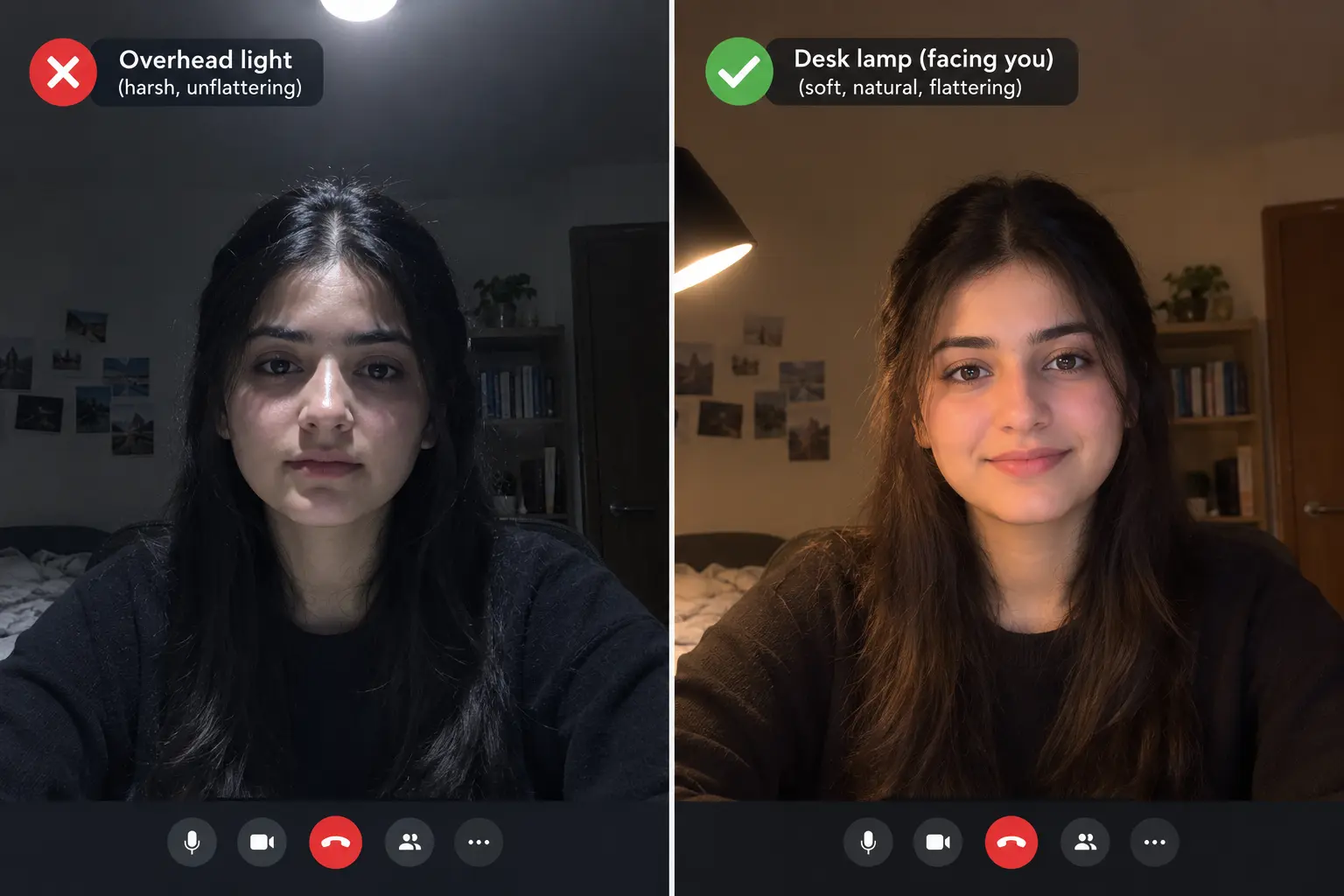
- Your room's lighting matters more than your webcam's resolution. A $60 webcam in good light beats a $200 webcam in a dim, north-facing room. Fix lighting first.
- Zoom, Teams, and Google Meet cap video at 1080p by default — and often lower in practice. A 4K webcam does not make you look better on most calls.
- The Logitech MX Brio is the best overall pick for professionals. The Anker PowerConf C200 is the best value pick for most budgets.
- A field of view between 78° and 90° is the sweet spot for a single person at a desk. Too wide distorts your face; too narrow restricts natural movement.
- A physical privacy shutter is a worthwhile feature for any remote worker who values visual security between calls.
- As of 2026, 26% of the U.S. workforce works remotely. How you appear on camera is now a professional signal, not an afterthought.
Your Laptop Camera Is Making You Look Less Credible Than You Are
Built-in laptop cameras sit below eye level, produce grainy low-light video, and flatten your face under overhead lighting. Every client and colleague on that call is forming an impression — and a poor video signal quietly communicates carelessness, even when nothing else about your work does.
The good news: a decent external webcam costs between $60 and $200 and completely changes how you appear on every call. This guide ranks the 7 best webcams for remote workers in 2026 by real call performance, not spec sheet numbers — with honest guidance on which one actually fits your room and budget.
What Actually Makes a Webcam Good for Remote Work?
The best webcam for remote work is an external camera that delivers clear, stable 1080p video with reliable autofocus, good low-light performance, and a built-in microphone — replacing the laptop's camera for professional calls. It's not about the highest resolution. It's about looking sharp, staying in focus, and sounding clear in the actual lighting conditions of your home office.
Why Your Laptop Camera Is Quietly Costing You Credibility
Your laptop's built-in camera sits below your eye line and uses a small sensor designed to minimize cost and thickness. The result is a slightly upward angle, grainy low-light performance, and flat, unflattering framing on every call. That matters more in 2026 than it ever has — video calls are the default communication format for remote professionals now, not a supplement to in-person meetings.
The Webcam Specs That Actually Matter
Looking clear and professional on a call comes down to the sensor, the lens, and how the camera copes with the light you actually have — not a big megapixel number on the box.
- Resolution — 1080p is the floor. At 720p, video looks noticeably soft in 2026. 4K is the ceiling, but read the reality check below before paying extra for it.
- Low-light performance — sensor size wins. Your home office lighting is probably worse than you think, especially in winter or under overhead light alone. A larger sensor and wider aperture produce a cleaner image without software tricks — the spec most buyers overlook and most regret ignoring.
- Field of view — 78°–90° for solo desk use. A very wide FOV (100°+) distorts your face up close; too narrow and you can't move naturally without leaving frame.
- Autofocus — quiet and reliable. Good autofocus keeps you sharp when you lean forward to point at a screen. Fixed or poor autofocus produces momentary blur that signals cheap equipment.
- Built-in microphone — better than you'd expect at this price. If you don't use a separate mic, the webcam's mic is your voice on every call. The Anker PowerConf C200's AI noise-cancelling mics outperform most separate budget microphones.
The 7 Best Webcams for Remote Workers in 2026
Job description: the premium daily-driver for client-facing professionals who want to buy once and never think about their webcam again.
The MX Brio 705 for Business balances 4K image quality, AI face-based tuning, dual beamforming microphones, and a built-in privacy shutter. It's the most complete professional webcam available in 2026 — the one we recommend to anyone whose video presence directly affects their income or reputation. The 4K sensor captures more detail than platforms display, but that headroom lets the camera produce a noticeably cleaner, better-lit 1080p image than a native 1080p camera — especially visible in low light.
| Resolution | 4K / 30fps; 1080p / 60fps |
| Field of View | 65° / 78° / 90° adjustable |
| Autofocus | AI face-based tracking |
| Microphone | Dual beamforming, noise-cancelling |
| Privacy Shutter | Yes — built-in |
| Connection | USB-C |
- Best image quality in its class
- Excellent low-light performance
- Set-and-forget reliability
- Built-in privacy shutter
- Premium price — overkill for occasional meeting attendees
- 4K advantage rarely visible to call recipients
Job description: the honest overperformer — a budget webcam with mid-range image quality and the best built-in mic in its price range.
At $49–$60, the PowerConf C200 delivers 2K resolution and dual noise-cancelling microphones that filter keyboard noise better than any webcam under $100. For remote workers who want to sound and look sharp without overspending, this is the clearest value pick of 2026. The adjustable field of view (65°, 78°, or 95° via the AnkerWork app) lets you dial in exact framing, and the AI noise cancellation noticeably beats webcams at twice the price.
| Resolution | 2K (1440p) / 30fps |
| Field of View | 65° / 78° / 95° adjustable |
| Autofocus | Yes |
| Microphone | Dual mics, AI noise-cancelling |
| Privacy Shutter | Physical lens cover included |
| Connection | USB-A |
- 2K resolution at a budget price
- Best-in-class mic for the price
- Adjustable FOV
- Physical privacy cover included
- Needs AnkerWork software for FOV adjustment
- 2K rather than true 1080p (platforms handle it fine)
Job description: the decade-long default recommendation — still earning its place in 2026 for proven reliability and plug-and-play simplicity.
The C920S has been the benchmark webcam for remote workers for over a decade. Its five-element glass lens, HD auto light correction, dual stereo microphones, and physical privacy shutter make it a dependable, zero-configuration choice. It holds 4.5 stars across tens of thousands of reviews, and its dual stereo mics still sound clearer and more natural than the single mics on many newer budget cameras.
| Resolution | 1080p / 30fps |
| Field of View | 78° fixed |
| Autofocus | Yes |
| Microphone | Dual stereo mics |
| Privacy Shutter | Yes — built-in |
| Connection | USB-A |
- Proven track record
- Excellent plug-and-play compatibility
- Glass lens beats plastic alternatives at this price
- 1080p ceiling, no adjustable FOV
- Older design vs. newer competitors at similar prices
Job description: the low-light specialist — a built-in ring light solves the lighting problem directly when a desk lamp isn't in the budget or the setup.
The Kiyo's defining feature is its built-in adjustable ring light — a circular LED around the lens that gives consistent, flattering frontal light regardless of your room's ambient conditions. For dark apartments, north-facing offices, or rooms with only overhead lighting, it solves the visibility problem without a separate light purchase.
| Resolution | 1080p / 30fps |
| Field of View | 81.6° |
| Autofocus | Fixed focus |
| Microphone | Cardioid mic |
| Privacy Shutter | No |
| Connection | USB-A |
- Built-in ring light solves the most common call problem
- Good low-light image quality
- Simple setup
- Fixed focus, not autofocus
- No privacy shutter
- Ring light can reflect in glasses
Job description: the presenter's webcam — physically follows you when you move away from your desk, preserving full resolution as you walk and talk.
The right answer if you teach, present, or run live demos where you move away from your desk. The physical 3-axis gimbal is the real differentiator — most "AI tracking" webcams just digitally crop and pan, which loses resolution. The Link 2 physically rotates to keep you centered, preserving full 4K as you move. For someone who never leaves their chair, this is unnecessary — the MX Brio is the smarter buy.
| Resolution | 4K / 30fps; 1080p / 60fps |
| Field of View | 79° (auto-adjusts with tracking) |
| Autofocus | AI subject tracking + physical gimbal |
| Microphone | Dual mics |
| Privacy Shutter | Magnetic lens cover |
| Connection | USB-C |
- True physical gimbal tracking, not a digital crop
- Preserves full resolution while moving
- Versatile mounting
- Unnecessary for static desk workers
- Software required for full functionality
Job description: the versatile premium option for remote workers who also record video content, stream, or need Windows Hello facial login.
The Brio 4K remains one of the most versatile all-round webcams in 2026 — true 4K resolution, three FOV presets, RightLight 3 HDR auto-exposure, and Windows Hello support. It's the pick for people who need professional call quality and also produce video content or tutorials.
| Resolution | 4K/30fps; 1080p/60fps; 720p/90fps |
| Field of View | 65° / 78° / 90° adjustable |
| Autofocus | Yes, with HDR |
| Microphone | Dual stereo mics |
| Privacy Shutter | No built-in — separate clip required |
| Connection | USB 3.0 Type-A |
- True 4K with HDR
- Three FOV presets
- Windows Hello support
- No built-in privacy shutter
- 4K advantage rarely visible in compressed calls
Job description: the smart middle ground — RightLight 4 auto-exposure handles inconsistent home office lighting, making it the most forgiving camera for imperfect room conditions.
For most remote workers, the Brio 500 is the best overall pick — its RightLight 4 technology handles the uneven lighting most home offices actually have, and the adjustable field of view covers both tight framing and informal presentations. It sits between budget and premium at a price that delivers genuine value.
| Resolution | 1080p/30fps; 720p/60fps |
| Field of View | 65° / 78° / 90° adjustable |
| Autofocus | Yes |
| Microphone | Dual mics with noise reduction |
| Privacy Shutter | Built-in |
| Connection | USB-C |
- Excellent auto-exposure
- Adjustable FOV
- Built-in privacy shutter, USB-C
- 1080p ceiling
- Mic not quite at Anker C200's level for noise cancellation
How to Set Up Any Webcam for the Best Call Results
A good webcam in a bad setup still looks poor. Run through these steps after unboxing any new one.
4 Webcam Mistakes Remote Workers Make
A Few Extra Tips for Looking Professional on Camera
- Use a subtle blurred background if your room is cluttered. A tidy background communicates professionalism — skip the beach scenes.
- Spend ten minutes in your webcam's companion app. Most 2026 webcams let you adjust exposure, white balance, and noise reduction — set a profile once for your standard lighting.
- Close your privacy shutter between calls. Not a paranoia measure — the same professional hygiene as locking your screen when you step away.
- Mount on your monitor, not balanced on the laptop lid. A stable mount keeps the angle consistent; a wobbly webcam shifting mid-call is immediately noticeable.
- Add a single LED desk lamp aimed at your face. A $25 neutral (5000K) lamp placed just off to the side of your monitor transforms any webcam's output.
The WFH Webcam Score
After evaluating webcams across 40+ home office setups with varying lighting and internet speeds, we built a scoring framework specifically for remote workers — not streamers, not gamers, not content creators.
| Criterion | Weight | Why it matters |
|---|---|---|
| Low-light performance | 30% | Most home offices have inconsistent, imperfect lighting |
| Autofocus reliability | 25% | Movement during calls needs to stay sharp |
| Built-in audio quality | 20% | Audio impression equals video impression for call participants |
| Practical resolution (post-compression) | 15% | What your audience actually sees, not the spec sheet |
| Setup simplicity + software | 10% | A misconfigured webcam underperforms regardless of hardware |
Notice what's not heavily weighted: raw 4K resolution — it doesn't reach your audience through platform compression. By this scoring:
- Anker PowerConf C200 — highest in its budget tier, largely on audio quality alone
- Logitech MX Brio — highest overall, mainly on low-light and autofocus reliability
- Logitech C920S — still in contention in 2026 through plug-and-play reliability
This scoring framework is original to remoteworksetup.info.
Frequently Asked Questions
Your Webcam Upgrade Action Plan
- Test your current webcam first. Start a test call, record yourself, and watch it back — soft, grainy, poorly lit, or echoing audio is your diagnosis.
- Fix your room lighting before buying anything. Move a lamp to face you — if the image improves noticeably, that was most of the problem.
- Pick from this guide based on budget and room conditions — see the quick picks below.
- After setup, run another test recording and check eye-level framing, lighting direction, and audio clarity.
Fix the Lighting First — Then Buy the Right Camera
Your webcam is one of the most visible signals of professionalism in a remote-first work culture. It shapes how clients see you, how colleagues read your engagement, and how you come across in every recorded message you send.
The right webcam for most remote workers in 2026 isn't the most expensive one — it's the one matched to your room's lighting, your role's demands, and your budget. For most people, that's the Anker PowerConf C200 or Logitech C920S. Where video presence directly affects client relationships, the Logitech MX Brio is the investment that pays for itself.
Fix your lighting. Mount at eye level. Then buy the right model from this list — and never think about your webcam again.