
Best Keyboard and Mouse Combo for Remote Workers in 2026:
Wireless, Ergonomic, and Multi-Device Options Ranked at Every Budget
Your laptop keyboard was designed for portability, not eight hours of daily typing. An external keyboard and mouse combo — paired with a laptop stand — solves 90% of the ergonomic problems caused by working on a laptop. Here is what to buy at every budget.

- A wireless keyboard and mouse combo is a small investment that makes a big difference in daily comfort. Pair it with a laptop stand and you have solved 90% of the ergonomic problems caused by working on a laptop.
- The clear winner for most professionals is the Logitech MX Keys S Combo — its blend of typing comfort, precision navigation, and multi-device intelligence makes it worth the price for serious daily work.
- The MX Keys S Combo at $200 (keyboard + MX Master 3S mouse + palm rest) is the best all-around combo — with multi-device switching, MagSpeed scroll, Smart Actions, and Logi Bolt reliability.
- For budget buyers, the Logitech Wave Keys MK670 at $60–$70 delivers an ergonomic wave layout, 24-month battery life, media keys, and 2.4GHz reliability — the best value combo under $80.
- For wrist pain or repetitive strain concerns, the Microsoft Sculpt Ergonomic Desktop at $90–$110 provides a split domed keyboard with cushioned palm rest — the most accessible ergonomic upgrade available.
- Multi-device switching — connecting one keyboard and mouse to two or three computers and switching with a button press — is the single most underrated feature for remote workers using multiple devices.
- 2.4GHz USB receivers typically offer more stable connections with lower latency than Bluetooth. For a fixed home office setup, 2.4GHz (Logi Bolt or equivalent) is the more reliable choice.
Your Laptop Keyboard Was Never Built for This
Your laptop keyboard is ergonomically designed for portability, not for eight hours of daily typing. The keys are low-travel, the layout forces your hands close together at a wrist-pronating angle, and the trackpad demands a precision movement pattern that accumulates strain over months of use. This matters even more if you're working with limited square footage — our guide to setting up a productive home office in an apartment covers how to make a compact desk work harder for you.
An external keyboard and mouse eliminates all of this. It lets you position your hands at shoulder width, maintain neutral wrist alignment, use a properly shaped mouse that fits your hand — and still have your laptop screen elevated to eye level where it belongs. Pair it with a proper external display and you've addressed the two biggest laptop ergonomics problems at once — see our best monitors for remote work in 2026 guide for display recommendations.
This guide ranks the best keyboard and mouse combos for remote workers in 2026 across every budget tier — from a $60 combo that covers all the essentials to a $200 premium package that handles three devices simultaneously. Each recommendation is evaluated on the criteria that matter specifically for remote work: typing comfort over long sessions, mouse precision, wireless reliability, battery life, and multi-device switching. For the full picture of a properly set up desk, see our complete ergonomic workspace guide.
What Makes a Keyboard and Mouse Combo Good for Remote Work?
A remote work combo has different priorities than a gaming setup or a portable travel setup. Understanding these priorities prevents buying a combo that scores well on spec sheets but underperforms during an 8-hour workday.
Should You Buy a Combo or Individual Keyboard and Mouse?
For most remote workers — a matched combo from the same manufacturer at a bundled price is the better starting point.
| Factor | Combo | Separate Units |
|---|---|---|
| Price | Usually 10–20% cheaper than buying individually | Full cost of each unit |
| Connectivity | Often share one USB receiver | May need two receivers or two Bluetooth channels |
| Aesthetic match | Guaranteed | Requires research to match |
| Flexibility | Both units replaced together | Each unit upgraded independently |
| Best for | Most remote workers — getting started | Power users with specific requirements for each |
The Logitech MX Keys S is $109 on its own; the MX Master 3S is $100; and the MX Palm Rest is $20. The MX Keys S Combo bundles all three for $200 — saving $30 compared to buying separately. The case for buying separate: if you have specific requirements no combo satisfies — a specific mechanical keyboard paired with a vertical ergonomic mouse — buying separately gives you the exact configuration you need. For most remote workers, a combo is the lower-risk starting point.
Best Keyboard and Mouse Combos for Remote Workers in 2026
| Typing Feel | Excellent — spherically dished scissor keys reduce finger travel |
| Mouse Precision | ✓ 8K DPI, MagSpeed tilt-scroll wheel |
| Multi-Device | ✓ Up to 3 devices, Logitech Flow |
| Palm Rest | ✓ Memory foam included |
| Battery Life | 70 days (mouse), 5 months (keyboard — no backlight) |
The MX Keys S Combo is a coordinated productivity system. The keyboard's low-profile, spherically dished keys reduce finger travel and fatigue during long typing sessions, while the MX Master 3S mouse features a MagSpeed tilt-scroll wheel that adapts speed based on scroll velocity — critical for navigating dense spreadsheets or code repositories.
The defining feature for remote workers is Logitech Flow — when enabled through the Logi Options+ app, your cursor moves seamlessly between two or three computers as if they were one extended display, and content copies and pastes across them. For remote workers managing a work laptop and a personal machine, this feature alone justifies the price premium. The combo ships with the Logi Bolt USB-C receiver — a meaningful reliability and encryption upgrade over older Unifying dongles.
If your budget allows one investment in your home office peripherals — this is it. The MX Keys keyboard and MX Master 3S mouse are individually considered best in their categories, and together they form the ultimate home office input setup. Earns its $200 price for heavy daily users on multiple devices — a poor value if you type briefly on one device.
| Typing Feel | Good — full-size with integrated palm rest |
| Mouse Precision | ✓ Hyper-fast scroll, 8 programmable buttons |
| Multi-Device | ✓ Up to 3 devices per unit |
| Battery Life | 36 months (keyboard), 24 months (mouse) — exceptional |
| Logitech Flow | ✗ Not available |
At $80–$100, the MK850 delivers multi-device switching across three devices — work laptop, personal computer, tablet — at less than half the price of the MX Keys S Combo. The 36-month keyboard battery and 24-month mouse battery mean you essentially never think about batteries during normal use.
The M720 Triathlon mouse includes eight programmable buttons — significantly more than standard mice — allowing remote workers to assign common actions (paste, undo, switch applications, mute/unmute) to thumb buttons that eliminate keyboard shortcuts during call-heavy workdays.
The best multi-device combo for remote workers who do not need the premium MX Keys S experience. Uses the older Logitech Unifying receiver rather than Logi Bolt — not a practical concern for most home office environments. Logitech Flow's absence means cross-device copy-paste requires manual effort, but device switching itself works identically.
| Typing Feel | Good — wave layout reduces wrist fatigue |
| Mouse Precision | Adequate — compact, quiet, smooth scroll |
| Multi-Device | ✗ Single device only |
| Battery Life | 24 months (both) — excellent for the price |
| Media Keys / Numpad | ✓ Both included |
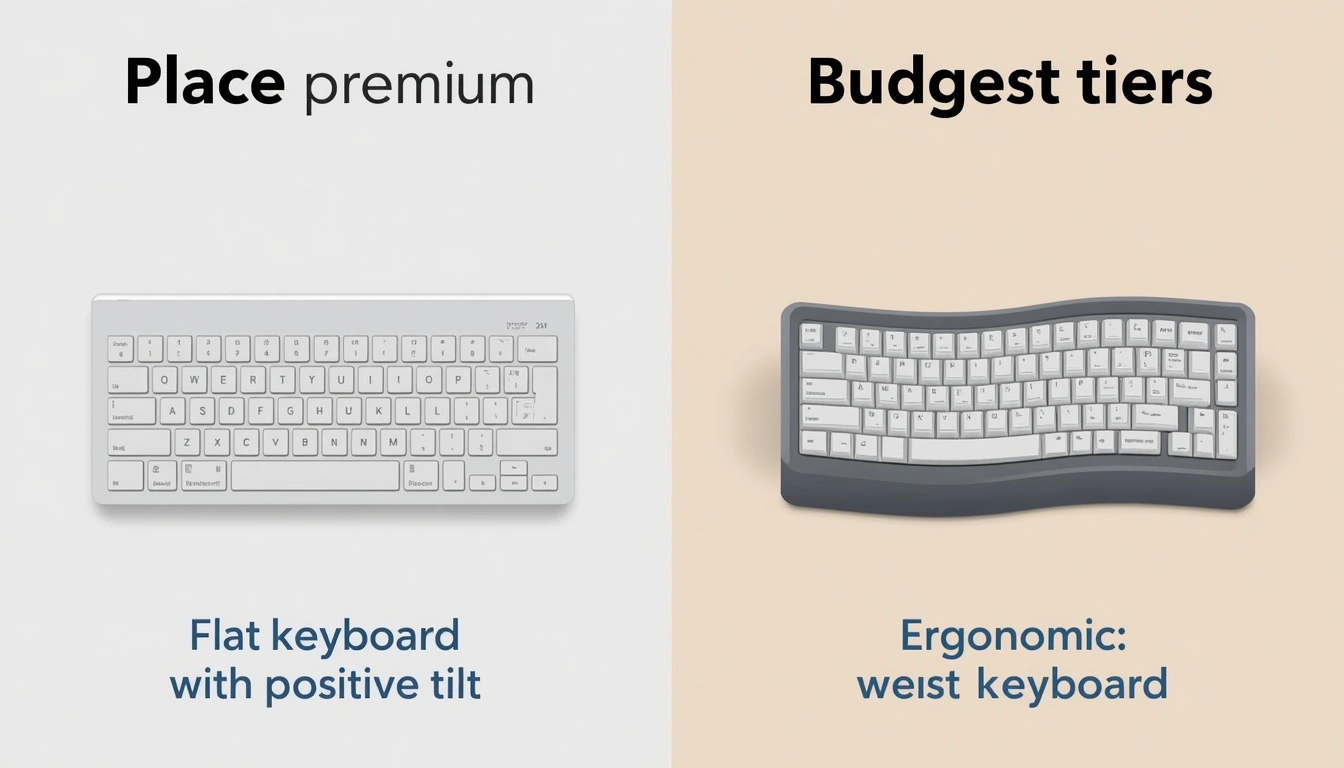
The Wave Keys MK670 is the evolution of the popular MK270, with a more ergonomic wave layout that provides natural wrist alignment and reduces typing fatigue. Unlike a flat keyboard that forces the wrists into a straight parallel position, the wave design gently curves the key rows to follow the natural arc of the fingers. The included memory foam wrist rest — rare at this price — keeps wrists in a neutral position throughout the workday.
The best value combo with a genuine ergonomic benefit and no learning curve — most users adapt within an hour. Single-device connectivity is the main trade-off, and the included mouse is adequate but not the contoured shape of the MK850 or MX Master 3S. For wrist pain beyond mild fatigue, see the Sculpt Ergonomic Desktop below.
| Typing Ergonomics | ✓✓ Split dome — most ergonomic standard combo |
| Mouse Ergonomics | ✓✓ Contoured — reduces forearm pronation |
| Multi-Device | ✗ Single fixed receiver |
| Backlight | ✗ None |
| Bluetooth | ✗ USB receiver only |
The Sculpt's split design physically separates the left and right key clusters at a slight outward angle, preventing the inward wrist rotation that standard keyboards require. The domed shape raises the center of the keyboard, tilting both wrists into a more natural position. Within a few days of use, most people notice less tension in their arms and shoulders. The Sculpt Ergonomic Mouse is contoured to maintain a handshake-style grip — reducing the full palm-down forearm rotation (pronation) that standard flat mice require.
| Typing Feel | Basic but clean and functional |
| Mouse Precision | 1000 DPI — adequate for standard work |
| Ergonomic Shaping | ✗ None — no tilt adjustment, no backlight |
| Battery Life | 24 months (keyboard), 12 months (mouse) |
| Price | $25–$35 — the floor of useful wireless combos |
The honest answer for remote workers who need to eliminate the laptop keyboard constraint without any budget allocation — first-time home office setup, a secondary desk, or a company-provided budget that covers essentials only. The typing experience is basic — no ergonomic shaping, no adjustable tilt, no backlighting — but clean, quiet, and reliably wireless.
For remote workers whose primary work is video calls, email, and document review rather than high-volume typing, the MK270 covers everything needed at a price that leaves budget for higher-impact purchases — like a monitor arm or a better chair.
The Ergonomic Upgrade Path: Which Combo for Your Wrist Health
One of the most common questions: "I have wrist pain from typing — what should I buy?" The answer depends on severity and willingness to adapt to new layouts.
How to Choose the Right Combo for Your Situation
- You type extensively and want the best wireless feel available
- You use two or three computers and switch between them constantly
- Logitech Flow is relevant to your multi-device workflow
- You want the most complete, matched premium package
- Multi-device switching matters but $200 is too much
- Battery longevity is a priority — 36-month keyboard battery
- You want more mouse buttons than standard combos provide
- Budget is the primary constraint
- You want ergonomic improvement without a layout learning curve
- A wrist rest included at this price point appeals to you
- You have daily wrist pain, forearm discomfort, or RSI history
- You will spend 3–5 days adapting to a split layout
- You primarily use one device at a fixed desk
- Budget is under $40 with no flexibility
- You need a functional basic combo immediately
- This is a secondary desk or a temporary setup
Only on RemoteWorkSetup.info — The One-Week Keyboard Test
Most remote workers buy a keyboard, use it for a year, and never think about whether it is actually working for them ergonomically. This one-week test gives you real data on whether your current keyboard is causing problems — before you spend anything on a replacement.
Before you start: Note your current daily discomfort level on a 1–10 scale for wrists, forearms, and shoulders. Write it down.
For one week, make only these three changes to your current setup:
At the end of the week, rate your discomfort again on the same 1–10 scale.
Pro Tips for Getting the Most from Your Keyboard and Mouse Setup
Common Keyboard and Mouse Mistakes Remote Workers Make
Frequently Asked Questions
The Most Immediate Ergonomic Upgrade Available
The external keyboard and mouse is the most straightforward ergonomic upgrade a laptop-based remote worker can make — and the one with the most immediate daily impact on typing comfort, wrist health, and desk organization.
For most remote workers: the Logitech MX Keys S Combo at $200 is the complete, premium answer. For multi-device users on a budget: the MK850 at $80–$100 covers multi-device switching at less than half the price. For first-time upgraders: the Wave Keys MK670 at $60–$70 delivers ergonomic improvement at the lowest practical price. And for anyone with wrist pain: the Microsoft Sculpt Ergonomic Desktop at $90–$110 provides the most ergonomic intervention available in a standard combo format.
Whatever you choose — run the one-week keyboard test before buying, position your mouse immediately beside the keyboard, fold in the keyboard feet for neutral tilt, and enable auto-sleep on both devices the day they arrive.
Add a Comment