How to Set Up QoS
on Your Router for Remote Work
- QoS doesn't make your internet faster — it makes your router smarter about sharing the speed you already have, so calls jump the queue instead of waiting behind bulk downloads.
- Most routers ship with QoS off by default. Turning it on properly takes under ten minutes on ASUS, TP-Link, or Netgear.
- Enter your real, measured speed at 85–90% — never the advertised plan number. That headroom is what prevents bufferbloat, the biggest hidden cause of call lag.
- Upload is the setting people botch most often — it's what carries your voice and video out to the call, and it's usually the more fragile side of the connection.
- Stack device priority (your laptop) with application priority (video conferencing) — either alone misses half the benefit.
- QoS can't fix everything: weak Wi-Fi at your desk, genuinely thin upload speed, ISP throttling, and packet loss all need different fixes entirely.
The Short Version
Your internet plan is fast. Your speed test looks great. And yet the second your partner fires up Netflix, or someone's console decides now is the moment for a game update, your Zoom call freezes mid-sentence. That's not a speed problem — it's a priority problem. Your router doesn't know a Zoom audio packet matters more than a chunk of a game download, so it treats them exactly the same, and whichever got in line first wins.
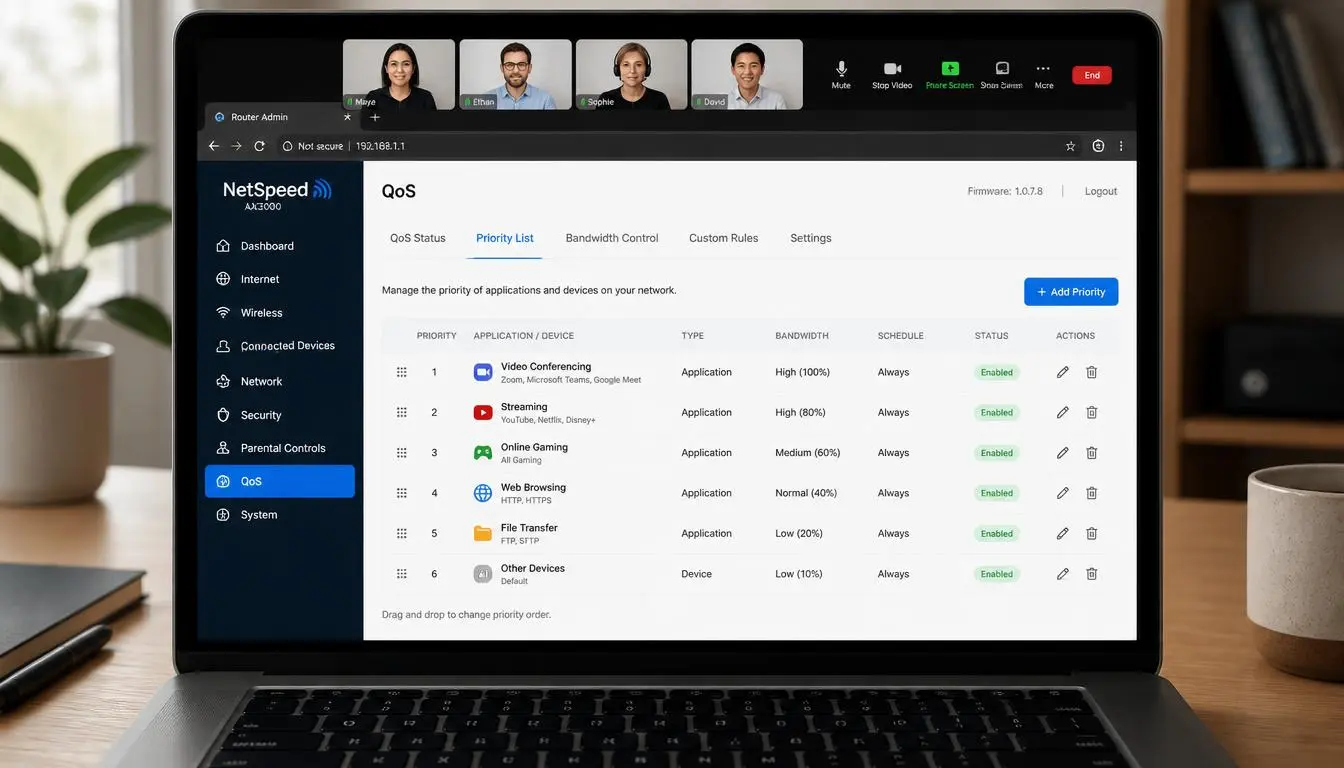
QoS (Quality of Service) fixes that. It's a feature built into most routers that lets you tell it which traffic matters most, so calls jump the queue instead of waiting behind bulk downloads. Most routers ship with it off by default, and turning it on properly takes under ten minutes. This guide covers ASUS, TP-Link, and Netgear, since between them they cover most home office setups.
Why This Actually Happens
Picture your internet connection as a single-lane road, and every bit of data in your house as a vehicle trying to use it. Without QoS, a slow-moving truck — a game update chugging along at full speed — can sit directly in front of a much faster car that only needed two seconds to get through. That car is your Zoom audio packet. It doesn't matter that it's tiny and urgent; if it joined the queue after the truck, it waits. QoS is the traffic cop that waves the truck aside and lets the car through first.
Left alone, your router can't tell these apart. Once QoS is configured, it processes call traffic immediately and holds the download back by a fraction of a second — a delay so small the downloader never registers it.
Two Quick Things to Do First
Before you touch any router settings, spend about three minutes on this. It makes the whole setup meaningfully more accurate.
192.168.1.15) works for the steps ahead.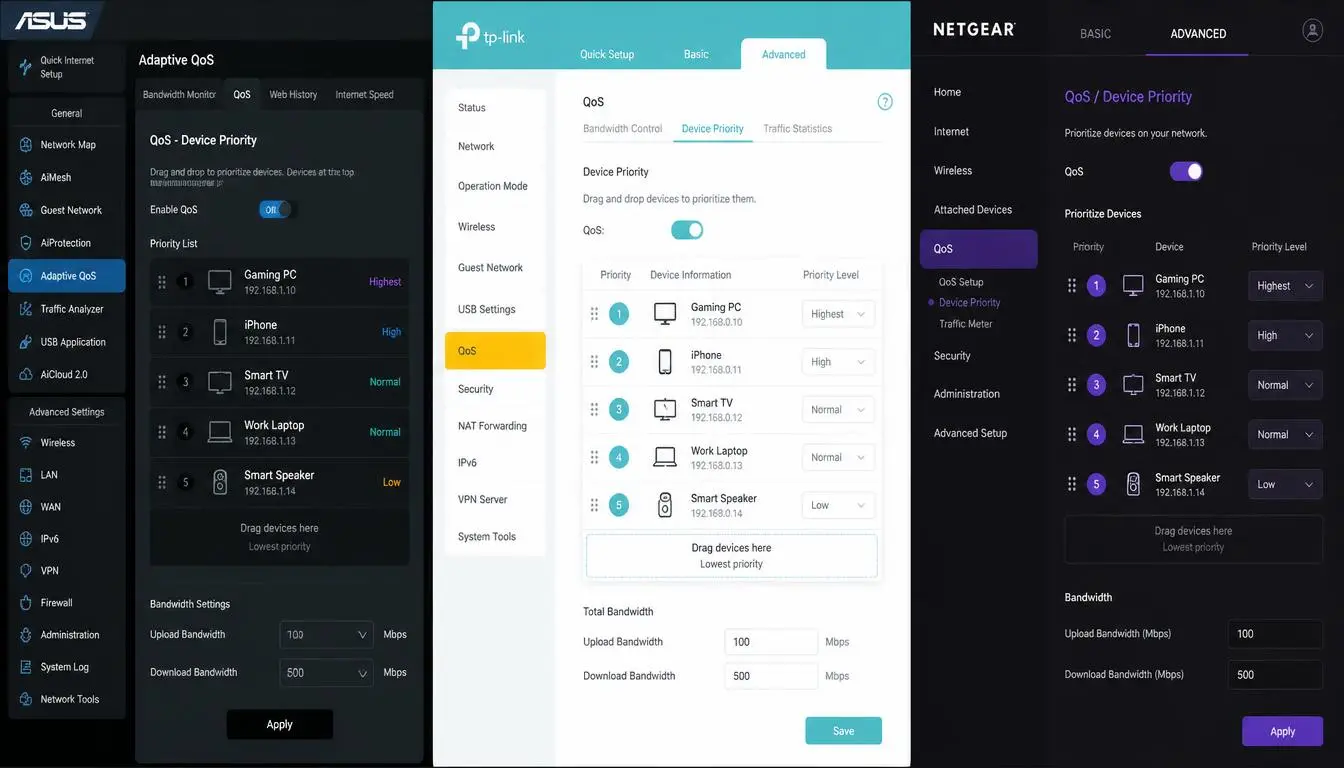
Setting It Up by Router Brand
ASUS has one of the more capable QoS systems on the consumer market, including a Work-from-Home preset on newer models.
- Open a browser and go to
router.asus.comor192.168.1.1. Log in with your admin credentials. - In the left sidebar, look for Adaptive QoS under General — or Advanced Settings → Traffic Manager → QoS. On 2024–2026 models, look for "Adaptive QoE," ASUS's AI-driven version with a one-click Work from Home preset.
- If you see the preset, enable it and skip most of the manual work below. Otherwise, toggle QoS on and enter your bandwidth figures at 85–90% of measured speed, choosing Adaptive QoS.
- Set category order: VoIP and Video Conferencing at the top, Web Surfing next, then Media Streaming, Gaming, and File Transfer at the bottom. Click Apply.
- Go to Bandwidth Monitor or Device Priority and drag a priority tag onto your laptop's icon, setting it to Highest — this is the step people skip, and the most important one.
- Click Apply, then verify with a Zoom test meeting while a separate device streams 4K or downloads something large.
- Go to
tplinkwifi.netor192.168.0.1, log in, and navigate to Advanced → QoS → Settings. - Enable QoS and enter your bandwidth at 85–90% of measured speed. Click Advanced, set the bandwidth priority percentage, and save.
- Go to Device Priority, find your laptop, and toggle its priority to High. Click the Timing column and choose "Always" so it sticks permanently.
If your model supports HomeShield QoS, that's the simpler path — mark your laptop as High Priority and the router handles the rest automatically.
- Open the app, go to More → QoS, and flip the toggle on.
- Choose Scene Acceleration — the more useful option for remote work — select Video Conferencing as your priority scene, and enter your bandwidth. This prioritizes call traffic network-wide, regardless of device.
- To target your specific laptop instead, use Client Acceleration, add it from your device list, and assign High Priority.
- Set the duration to "Always" and confirm so it doesn't quietly expire.
- Log in at
routerlogin.netor192.168.1.1. Go to Advanced → Setup → QoS Setup and tick enable. - Click "Setup QoS Rule" and enter your download and upload speeds at 85–90% of measured.
- Click Add Priority Rule, choose By Device, select your laptop, set it to Highest, and Apply.
- Add a second rule under Applications, selecting Video Conferencing or VoIP, again set to Highest. Stacking both device-level and application-level rules is what makes this effective.
- Log in the same way, go to QoS in the main menu. Under Congestion Control, enter your bandwidth at 85–90%.
- In Traffic Prioritization, click Add Device, select your laptop, confirm — it's now top priority automatically.
- Use the bandwidth allocation graph to reserve a percentage for that device — around 40–50% is sensible for most shared households. Click Apply, and the dashboard shows prioritization happening live.
A Quick Reference Table
Regardless of which brand you're running, this is roughly the configuration worth aiming for:
| Setting | Recommended Value | Why |
|---|---|---|
| QoS enabled | Yes | Off by default on virtually every router |
| Download bandwidth entry | 85–90% of measured speed | Never the advertised plan number |
| Upload bandwidth entry | 85–90% of measured speed | The critical one for video calls |
| Work laptop priority | Highest / High | By device name, MAC, or IP |
| Video conferencing apps | Highest | Zoom, Teams, Meet, phone calls |
| Web/SaaS apps | High | Slack, Notion, browser-based tools |
| Media streaming | Medium | Netflix, YouTube, Spotify |
| File downloads | Low | Game updates, large transfers |
| Cloud backup | Lowest | Can always wait a few more seconds |
Actually Testing Whether It Worked
Configuring QoS and never checking it is basically guesswork. This test takes about five minutes and tells you plainly whether it's doing its job.
- Join a Zoom test meeting, or hop on a real low-stakes call.
- Get someone else on the network downloading something heavy — a game update, a large Drive folder, a 4K YouTube stream at full quality.
- Watch your call. If it holds steady — no freezing, no chopping audio — QoS is working, and the download quietly finishes in the background.
When QoS Won't Be Enough on Its Own
QoS gets credited (and blamed) for more than it's actually responsible for. It works great when your household has enough total bandwidth but is sharing it badly. It can't do much if the underlying connection itself is the actual problem.
| The Real Problem | The Actual Fix |
|---|---|
| Upload too thin for your role (under ~5 Mbps solo, ~20 Mbps for two) | Switch to fiber or bump your cable plan |
| Weak Wi-Fi signal specifically at your desk | A physical Ethernet run or better router placement |
| ISP throttling during peak hours | Confirm with a VPN speed comparison, then contact your ISP with logs |
| Packet loss on the line before it reaches your router | Needs an ISP technician to check the physical line |
And if you're working away from home, you can't touch the router at all. Our guide to setting up your workspace at a café covers what to do on networks you don't control.
Small Things That Make a Real Difference
- If your router supports time-based rules, set your laptop to highest priority specifically during work hours, then let it drop back to normal in the evenings
- Cap bandwidth on your lowest-priority devices, not just boost priority on the important ones — a 50 Mbps cap on a game console or smart TV during work hours often works better than priority alone
- Check your settings after firmware updates — they occasionally reset custom configurations without warning
- Use Ethernet on your work laptop alongside QoS, not instead of it — Ethernet removes Wi-Fi as a variable entirely. A docking station with an Ethernet port pairs well with a dual monitor setup, giving you one cable for everything
- Re-run your speed test every few months and update your QoS figures to match — ISP speeds shift over time in both directions
- A stable connection helps the rest of your workday too — pair it with our remote work health tips to keep long call days sustainable
Mistakes Worth Avoiding
Quick Answers
Your Network Stops Being a Resource Everyone Fights Over
QoS is probably the single most underused feature sitting in most people's router settings, and it's genuinely the best free fix available for the classic remote work frustration of calls dying the moment someone else in the house gets online.
Log in, enter your real bandwidth numbers at 85–90%, mark your laptop as top priority, push video conferencing to the top of the application list — then actually run the verification test rather than assuming it worked.
Add a Comment