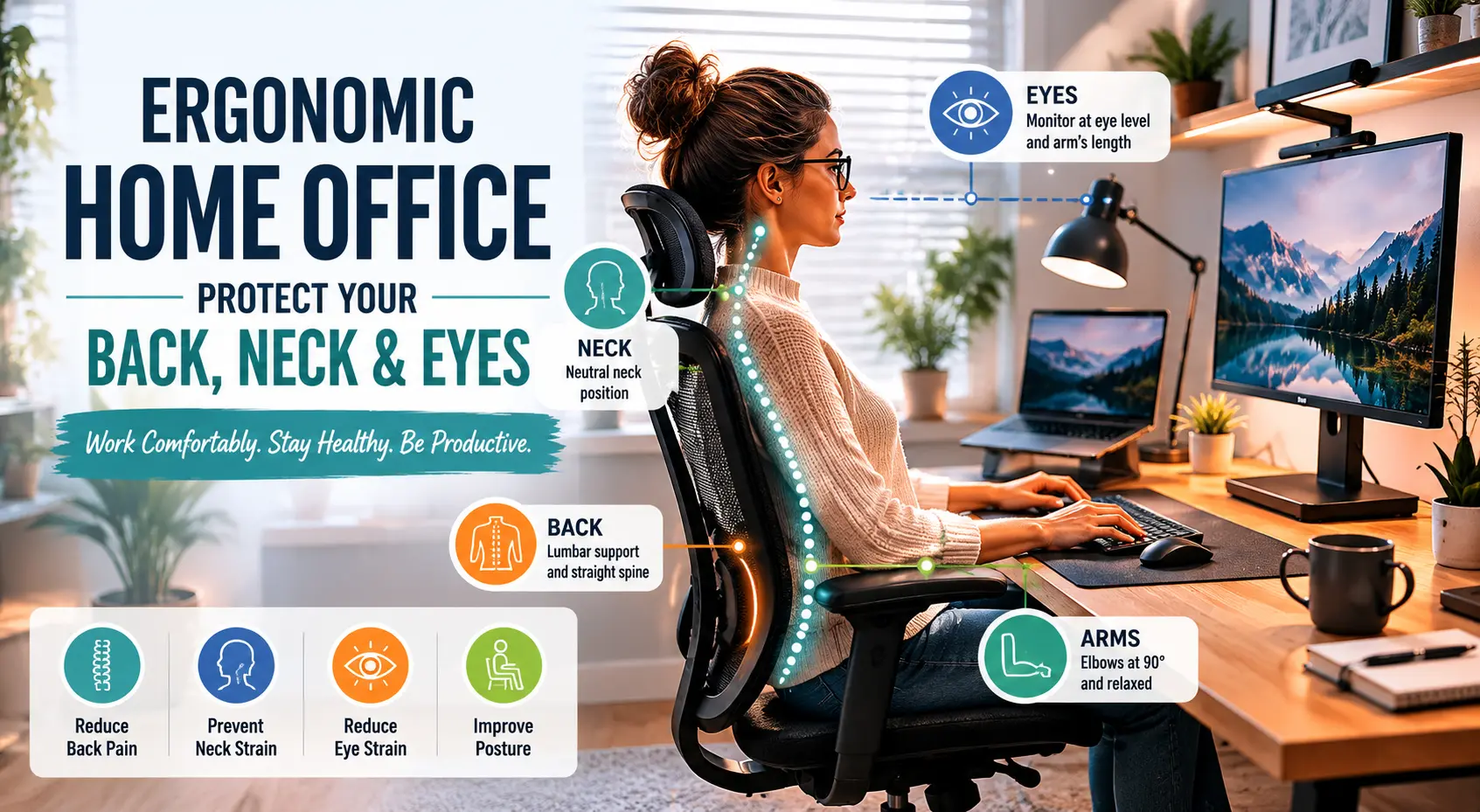
Ergonomic home office setup with adjustable standing desk, high-back mesh chair, monitor at eye level, and natural side lighting

The Ultimate Ergonomic Home Office Setup Guide (Backed by Science)

Build a science-backed ergonomic home office with the right chair height, monitor position, desk setup, lighting, and movement habits—practical guidance for remote workers who want to work pain-free.

The Ultimate Ergonomic Home Office Setup Guide (Backed by Science) | Remote Work Setup
Ergonomics & Health

The Ultimate Ergonomic Home Office Setup Guide
(Backed by Science)

Ergonomic home office setup with adjustable standing desk, high-back mesh chair, monitor at eye level, and natural side lighting
⚡ Key Takeaways
  • Over 61% of home workers report musculoskeletal discomfort — nearly all of it caused by fixable setup problems, not the work itself.
  • Your chair is the foundation. Proper lumbar support, seat height, and armrest position prevent the slow accumulation of back and neck pain over months and years.
  • Monitor placement is critical: the top of the screen should sit at or just below eye level, roughly arm's length away, with no glare from windows behind or in front of you.
  • Keyboard and mouse position determines wrist health. Elbows at 90°, wrists neutral and flat — not bent up or angled inward.
  • Movement is non-negotiable. No static setup, however perfect, compensates for sitting without breaks. The science is unambiguous on this point.

The Pain You Think Is Normal — Isn't

Picture a typical remote workday. You sit down at 8:30. Two hours pass. You notice your neck is tense, your lower back is starting to ache, and your eyes feel like they are looking through fog. You stretch, roll your shoulders, and get back to it. By 3 PM the discomfort is louder. By 6 PM it is the main thing you are aware of. You assume this is just what working looks like.

It is not. The discomfort is your body communicating that something in your environment needs to change. And the good news — the genuinely encouraging news — is that most of the causes are specific, measurable, and fixable with targeted changes to the five zones of your workspace.

A properly configured ergonomic home office does not just reduce pain. It changes the quality and sustainability of your work — the kind of change you feel within days and accumulate over years.

This guide walks through every zone of your setup, from the ground under your feet to the light above your screen, using what the research actually says rather than generic advice that gets recycled without context.

What the Research Actually Says

Ergonomics is not a wellness trend. It is an applied science with decades of peer-reviewed research behind it — and the data on home office setups has grown sharply since the mass shift to remote work.

61%
of home workers report musculoskeletal discomfort while working remotely
PMC / NCBI, 2023
41%
higher rates of lower back pain in remote workers with poor setups vs. office-based peers
Int. Journal of Environmental Research, 2023
90%
more spinal pressure placed on lower back when sitting without lumbar support vs. standing
Journal of Physical Therapy Science
~50%
of remote workers in studies were using kitchen tables or bedroom chairs as their primary workstation
Multiple survey sources, 2022–2024

The pattern in the data is consistent: the problem is not remote work. The problem is improvised remote work — the kitchen table chair, the laptop propped on a stack of books, the monitor five inches below eye level. Every one of these improvisations has a direct physical cost, and the cost compounds quietly over time until it becomes a chronic problem that outlasts the job.

The 5-Zone Framework: A Systematic Approach

The most useful way to think about ergonomic setup is as a system of five interconnected zones, each of which needs to be configured correctly in relation to the others. Getting one zone right while ignoring the rest produces incomplete results.

Zone 01
Chair & Seat
The foundation. Lumbar support, seat height, armrests, and seat depth all affect how the rest of your body aligns throughout the day.
Zone 02
Desk & Surface
Desk height determines elbow angle and wrist position. The wrong height creates tension regardless of how good your chair is.
Zone 03
Monitor & Screen
Monitor height and distance determine neck angle and eye strain. Most home setups place the screen significantly too low.
Zone 04
Keyboard & Mouse
Peripheral placement governs wrist and shoulder health. Laptop keyboards are the most common ergonomic mistake in home offices.
Zone 05
Environment
Lighting, air quality, temperature, and movement habits shape cognitive performance and physical wellbeing over the full day.

Zone 1: Chair Setup — The Foundation of Everything

Every ergonomic adjustment you make to your monitor, desk, or keyboard is downstream of your chair. If your chair height is wrong, your desk height is wrong. If your desk height is wrong, your keyboard position is wrong. The chair is not just a seat — it is the origin point of your entire physical configuration.

Seat Height: The Most Important Measurement

Correct seat height places your feet flat on the floor with your knees bent at approximately 90 degrees and your thighs roughly parallel to the ground. From this position, your hips are at a natural angle, your spine can maintain its natural curve, and your legs are not cut off by the front edge of the seat. If your feet cannot reach the floor at this height, a footrest is the correct solution.

🔬 Science Note
The Mayo Clinic's office ergonomics guidance confirms that thighs should be parallel to the floor, knees at approximately the same height as hips, and feet flat on the floor or on a footrest. This alignment reduces compressive load on the lumbar spine and decreases the muscular effort required to maintain an upright position.

Lumbar Support: Non-Negotiable

The lumbar spine has a natural inward curve. When you sit without support for extended periods, that curve reverses — the lower back rounds outward — and the muscles and discs in that region absorb significantly more load than they are designed to handle. A chair with adjustable lumbar support maintains the natural curve passively, so your muscles do not have to hold your spine upright through active effort all day.

The lumbar support should press gently into the small of your back — the area roughly between your waistband and mid-back. Too high and it pushes on the thoracic spine. Too low and it provides no benefit at all.

Armrests and Seat Depth

Armrests should support your forearms when your shoulders are fully relaxed. If your armrests force your shoulders up or outward, they are doing more harm than good. Seat depth matters more than most people realize: there should be approximately two to three finger-widths of space between the front edge of the seat and the back of your knees.

Zone 2: Desk Height and Surface Setup

Once your chair is correctly adjusted, desk height follows directly. With your elbows bent at 90 degrees and your forearms parallel to the floor, the desk surface should sit at or just below your elbow height. This keeps your wrists neutral when your hands are on the keyboard.

💡 Quick Test
Sit in your properly adjusted chair. Let your arms hang naturally from your shoulders. Now bend your elbows to 90°. That height is your ideal desk surface. If your current desk is higher, you will hunch your shoulders to reach it. If it is lower, your wrists will bend upward — a direct path to repetitive strain.

Standing Desks: The Science Behind the Hype

Height-adjustable standing desks have moved from executive novelty to mainstream ergonomic tool, and the research supports their use — with important caveats. The value of a standing desk is not in standing more; it is in alternating between positions throughout the day. A practical rhythm that ergonomics researchers support is roughly 25 to 35 minutes seated followed by 5 to 10 minutes standing or moving, repeated throughout the day.

📷 Image 2 — Monitor Section
Side-view diagram of proper ergonomic posture: monitor at eye level, 90° elbows, feet flat, lumbar curve maintained, screen at arm's length
Alt text: "Side-view ergonomic posture diagram showing correct monitor height, keyboard position, chair height, and spine alignment"

Zone 3: Monitor Height, Distance, and Angle

The optimal position for most people is the top of the monitor screen at or slightly below eye level, with the screen at approximately arm's length (roughly 50 to 70 centimetres) from your face.

Why Most Home Office Monitors Are Too Low

The most common home office monitor arrangement is a laptop sitting flat on a desk, screen tilted up at a steep angle, with the display roughly 20 to 30 centimetres below the user's eyes. To see the screen clearly, the user tilts their head downward. At 30° of cervical flexion, the effective load on the neck rises to approximately 40 pounds. At 60° — a typical laptop posture — it approaches 60 pounds. Held for hours every day, this is the mechanism behind the chronic neck pain that laptop-dependent remote workers experience.

A laptop stand and an external keyboard costs under $60 and takes ten minutes to set up. It transforms laptop ergonomics from one of the worst home office situations to one of the most adaptable.

Monitor Positioning: The Exact Settings

  • Height: Top of the screen at or just below eye level when sitting upright with your chair correctly adjusted.
  • Distance: Roughly 50–70 cm from your eyes — arm's length is the practical approximation.
  • Tilt: Angled back 10–20° from vertical. This reduces glare and compensates for the natural downward angle of the eyes at rest.
  • Position relative to windows: Perpendicular to window light sources to avoid both glare on the screen and harsh backlight behind you on video calls.

Dual Monitor Setup Rules

If you use two monitors equally, center them so the boundary sits directly in front of you. If you use one monitor predominantly, place it directly in front and position the secondary monitor at a 30-degree angle to the side. Avoid setups that require sustained lateral head rotation.

Zone 4: Keyboard, Mouse, and Peripheral Placement

The keyboard and mouse govern the health of your wrists, elbows, and shoulders. The goal is to keep all three joints in their neutral positions throughout the working day.

Keyboard Position: What Neutral Means in Practice

Your keyboard should sit at a height that allows your elbows to stay at approximately 90 degrees, your forearms roughly parallel to the floor or angled very slightly downward, and your wrists in a flat, neutral position. If your keyboard has adjustable legs at the back, consider lowering them or removing them entirely — the traditional practice of tilting the keyboard upward actually increases wrist extension.

PeripheralNeutral PositionCommon MistakeFix
Keyboard High ImpactElbows at 90°, wrists flatToo high, wrists bent upLower desk or use a keyboard tray
MouseSame level as keyboard, arm close to bodyToo far away, shoulder reaching forwardMove closer; use a compact keyboard to close the gap
Laptop keyboardRaised to screen eye level, external keyboard on deskLaptop flat on desk, neck bent 30–60°Laptop stand + external keyboard
Numeric keypadUsed occasionally, within close reachPushes mouse too far right, shoulder strainingUse a tenkeyless keyboard; use a separate numpad when needed

Mouse Ergonomics: The Often-Ignored Half

The mouse should sit at the same height and directly beside the keyboard, close enough that your elbow does not need to leave your side to reach it. Vertical mice and trackballs are worth considering for people who spend significant time in precise cursor work — they reduce forearm pronation that a standard flat mouse requires.

Zone 5: Lighting, Environment, and Movement

Lighting affects eye strain, energy, mood, and how you appear on video calls. Movement habits are, arguably, the single most important health variable in any desk-based work life.

Lighting: The Ergonomic Layer Nobody Talks About

Poor lighting forces physical adaptation: you lean forward to see more clearly, tilt your head to reduce glare, and squint — all of which add muscular load. The correct ergonomic lighting setup combines three elements working together.

  • Natural light: Position your desk perpendicular to windows. Side lighting is flattering for video calls and does not compete directly with your screen.
  • Task lighting: A clamped or mounted desk lamp directed at your work surface, not at your screen. Adjustable color temperature makes a meaningful difference in sustained energy.
  • Bias lighting: An LED strip mounted behind your monitor reduces the contrast between a bright screen and the dark wall behind it — the primary cause of eye fatigue during evening screen use.

The Movement Imperative: What the Science Is Clear About

No ergonomic setup — however precisely calibrated — compensates for extended static sitting. A 2020 meta-analysis published in the British Journal of Sports Medicine found that prolonged sitting is independently associated with increased cardiovascular risk, metabolic dysfunction, and musculoskeletal decline — even in people who exercise regularly outside of work hours.

🔬 The Evidence-Based Rule
Current occupational health guidance recommends breaking up seated work every 25–30 minutes with at least 1–2 minutes of standing, walking, or gentle movement. This does not require a standing desk — it requires a timer and the habit of using it.

The most practical implementation is a scheduled break reminder combined with a habit stack: stand up, refill your water, walk to a different room for 90 seconds, and return. The micro-movement does not need to be exercise. It needs to be a disruption of the static load that sustained sitting places on the spine and lower body.

Building Your Setup: Week-by-Week Action Plan

A phased approach — where each week's changes are integrated and habituated before the next week's additions — produces more durable results than trying to change everything at once.

📋 4-Week Ergonomic Setup Plan
1
Week 1 — Chair and Posture FoundationAdjust your chair height so feet are flat, knees at 90°, and your lumbar support contacts the small of your back. Sit and work for one full day, noting where discomfort first appears.
2
Week 2 — Monitor Height and DistanceRaise your monitor so the top of the screen is at eye level. If using a laptop, buy a stand and external keyboard this week. Set your screen at arm's length perpendicular to any window.
3
Week 3 — Keyboard, Mouse, and LightingVerify your keyboard sits at elbow height with wrists flat. Move your mouse directly beside the keyboard. Add a desk lamp for task lighting and install bias lighting behind your monitor.
4
Week 4 — Movement Habits and Fine-TuningSet a 25-minute break reminder. Stand, move, and return. Make it automatic. Review any remaining discomfort from weeks 1–3 and make targeted adjustments.

Frequently Asked Questions

How high should my monitor be for ergonomic home office use?
The top of your monitor screen should be at or just below your eye level when sitting in your correctly adjusted chair. The screen should be approximately 50–70 cm from your face. Most home office setups have the monitor far too low, which requires sustained cervical flexion and is one of the primary causes of neck pain in remote workers.
What chair height is correct for ergonomic sitting?
Your chair height is correct when your feet rest flat on the floor, your knees are bent at approximately 90 degrees, and your thighs are roughly parallel to the floor. If your feet do not reach the floor comfortably at this height, use a footrest rather than lowering the chair and compromising the knee and hip angle.
Is a standing desk actually worth it for a home office?
A height-adjustable desk is genuinely useful, but not because standing is inherently better than sitting. The value is in being able to alternate between the two positions throughout the day. The research supports alternating roughly 25–30 minutes of seated work with 5–10 minutes of standing or movement.
How do I set up keyboard and mouse ergonomically?
Your keyboard and mouse should sit at a height that keeps your elbows at 90 degrees, your forearms roughly parallel to the floor, and your wrists flat and neutral. The mouse should be placed directly beside the keyboard, close enough that your elbow stays near your body when using it.
How often should I take breaks from sitting at my home office desk?
Current occupational health guidance recommends breaking up seated work every 25–30 minutes with 1–2 minutes of standing or gentle movement. A digital break reminder set to 25-minute intervals is the simplest and most effective implementation.
What is the best lighting setup for a home office to reduce eye strain?
The most effective home office lighting combines three elements: natural side lighting from a window positioned perpendicular to your desk, a dedicated task lamp for the desk surface, and bias lighting behind the monitor that reduces the contrast between the bright screen and the dark wall around it.

Your Setup Is a Long-Term Investment in Your Work

Think about the discomfort you noticed in the last month of remote work. The tight shoulders at 2 PM. The lower back that starts complaining around hour five. The eyes that feel scraped by 6 PM. None of those are inevitable.

An ergonomic home office is not a luxury reserved for corporate budgets. The most impactful changes — chair height, monitor position, break habits, keyboard placement — cost nothing but attention and a few minutes of adjustment. The rest builds from there. One week at a time, one zone at a time, until your office works for your body instead of against it.
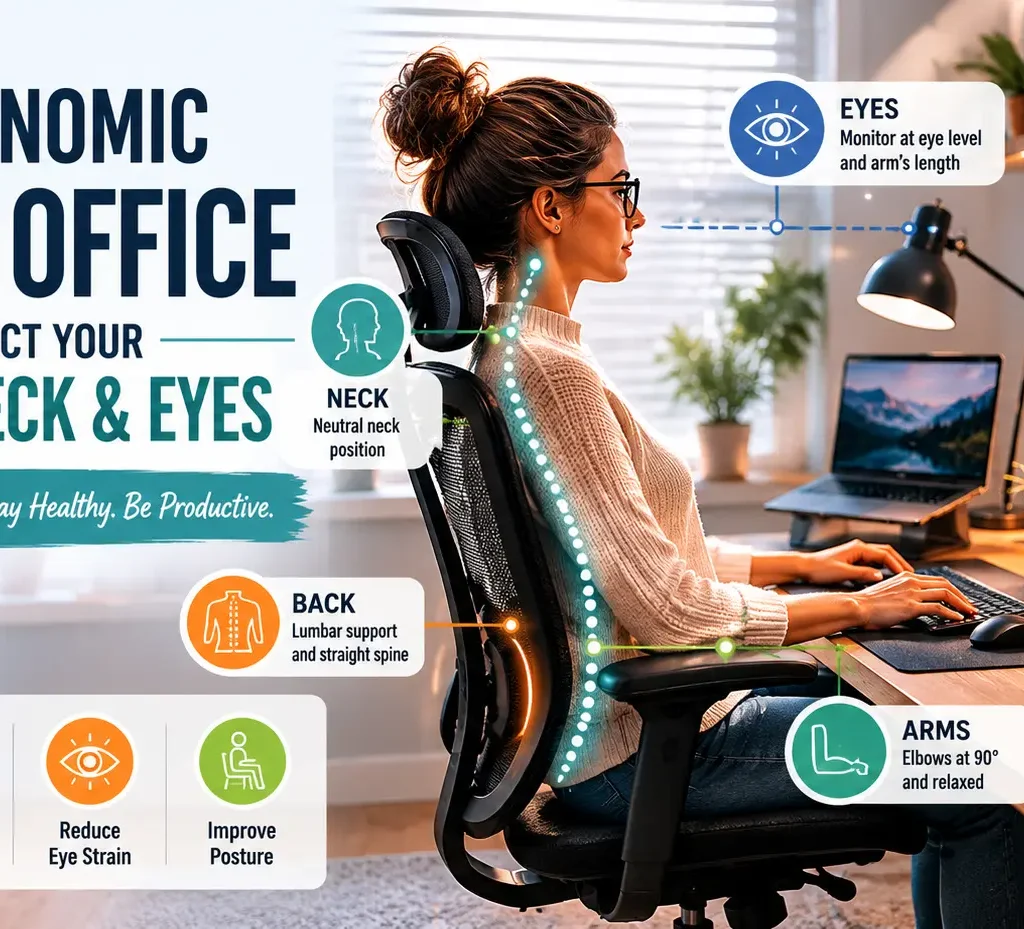
The Ergonomic Home Office: How to Protect Your Back, Neck, and Eyes

The Ergonomic Home Office: How to Protect Your Back, Neck, and Eyes

Set up a healthier, more productive home office with our expert ergonomic guide. Covering everything from lumbar support and desk height to monitor angles and blue light reduction, these practical, affordable tips are designed to prevent pain and help you work comfortably for hours.

The Ergonomic Home Office: How to Protect Your Back, Neck, and Eyes
The Ergonomic Home Office: How to Protect Your Back, Neck, and Eyes | RemoteWorkSetup.info
🏠 Ergonomics & Wellness

The Ergonomic Home Office:
How to Protect Your Back, Neck, and Eyes

A complete, practical guide to setting up a home workspace that keeps your body healthy — at any budget.

📅 May 2026 ⏱ 12 min read
Ergonomic home office setup showing correct posture for back, neck and eyes 2026
Key Takeaways
  • An ergonomic home office is a workspace deliberately arranged to support the body's natural posture, reducing strain on the back, neck, and eyes during prolonged desk work.
  • The 90-90-90 rule — hips, knees, and ankles each at 90-degree angles — is the foundational principle for correct chair and desk height that protects spinal alignment.
  • Monitor position is critical for neck health: the top of your screen should sit at or just below eye level, at arm's length away, to prevent "tech neck."
  • The 20-20-20 rule (every 20 minutes, look at something 20 feet away for 20 seconds) is the most evidence-backed method to reduce digital eye strain.
  • Budget is not a barrier — many ergonomic improvements such as repositioning your monitor or adjusting your chair cost absolutely nothing.
  • Even a perfect ergonomic setup fails without intentional movement habits: regular breaks and desk stretches are non-negotiable for long-term spinal health.
  • Poor home office ergonomics affects an estimated 40–60% of full-time remote workers, making it one of the most overlooked health risks of remote work.

Most people working from home have spent more time choosing their Wi-Fi router than setting up their workspace — and their body is quietly paying the price. If you've been brushing off that nagging lower back ache or end-of-day headache as "just part of the job," the real culprit is almost certainly your setup, not your workload. In this guide, you'll learn exactly how to configure your chair, desk, monitor, and lighting to protect your back, neck, and eyes — with practical fixes you can implement today, at any budget.

What Is an Ergonomic Home Office — and Why Does It Matter?

Ergonomics is the science of designing a workspace to fit the worker's body, reducing physical stress and the risk of musculoskeletal injury during prolonged activity. An ergonomic home office isn't about having the most expensive chair or a four-monitor setup — it's about intentional alignment between your body and your environment.

The problem with most home offices is that they evolved by accident. A dining chair here, a laptop on the kitchen table there, and suddenly you're spending eight hours a day in a posture that your body was never designed to hold. Unlike corporate offices, which often undergo professional ergonomic assessments, home setups are almost always improvised — and those small misalignments compound over time into real physical pain.

"Ergonomics is the science of designing a workspace to fit the worker's body, reducing physical stress and the risk of musculoskeletal injury during prolonged activity."

Why Home Office Ergonomics Matters More Than You Think

The shift to remote work has created a largely invisible health crisis. When workers moved out of office buildings with adjustable chairs and IT-configured desk setups, they brought their laptops home — but left their ergonomic support behind.

40–60%of full-time remote workers report back or neck pain
60 lbsof force on the cervical spine when your head tilts just 60° forward
20-20-20the clinically recommended rule to reduce eye fatigue

The costs of poor ergonomics extend beyond personal discomfort. Chronic musculoskeletal disorders reduce focus, slow output, and — if left unaddressed — can evolve into conditions requiring medical intervention. The good news: most ergonomic improvements are free or very low-cost, and the results are felt within days.

💡

Quick Win: Before spending any money, simply adjust your monitor and chair height. These two free changes alone can eliminate the majority of back and neck strain for most people.

How to Set Up Your Chair and Desk for Back Health

Your lower back is the first casualty of a bad home office. Sitting on a soft sofa, a kitchen stool, or a chair without lumbar support places the lumbar spine in a C-curve — the opposite of its natural S-curve — for hours at a time. The result: tight hip flexors, compressed discs, and that deep ache that greets you by mid-afternoon.

The 90-90-90 Rule: Your Posture Foundation

The 90-90-90 rule states that for optimal spinal alignment, the hips, knees, and ankles should each be positioned at approximately 90-degree angles while seated at a desk.

🪑 The 90-90-90 Sitting Rule

  • 1
    Hips at 90°: Adjust your seat height so your thighs are parallel to the floor. Your hips should be level with or very slightly higher than your knees.
  • 2
    Knees at 90°: Your feet should rest flat on the floor (or on a footrest). There should be a 2-finger gap between the back of your knee and the seat edge.
  • 3
    Elbows at 90°: With your shoulders relaxed, your forearms should be parallel to the floor when your hands rest on the keyboard. Adjust desk height or armrests accordingly.
  • 4
    Lumbar support: The backrest should press gently against the natural inward curve of your lower back — not the middle of your back.

What If You Don't Have an Ergonomic Chair?

A lumbar support pillow ($15–30) placed at the curve of your lower back can dramatically improve any chair. A rolled-up towel works in a pinch. If you're using a dining chair, ensure it is firm (not padded), and place your laptop or monitor on a stack of books to bring it to the correct height.

Do: Sit With Your Back Against the Chair

Use the full depth of your seat and let the backrest support you. Don't perch on the edge.

Don't: Work From the Sofa

Sofas put the spine in a C-curve and almost always position screens too low, compounding neck strain on top of back issues.

📐

Check: Desk Height

Standard desk height (28–30") suits most people 5'8"–6'2". Shorter or taller? Use a footrest or a monitor arm.

🦶

Add: A Footrest

If your feet don't rest flat on the floor after setting seat height, a footrest ($20–40) is not optional — it's essential.

How to Position Your Monitor to Protect Your Neck

Forward head posture — commonly called "tech neck" — occurs when the monitor is positioned too low or too far away, causing the head to tilt forward and placing up to 60 pounds of additional force on the cervical spine. At 15°, the effective load is ~27 lbs. At 60°, it's ~60 lbs. The human head weighs around 10–12 lbs in neutral position.

The Correct Monitor Position

🖥️ Monitor Positioning — The 3 Rules

  • 1
    Height: The top of your monitor should align with your natural eye level (or 1–2 inches below for bifocal users). You should be looking slightly downward at the screen, not up.
  • 2
    Distance: Place your monitor at arm's length — roughly 50–70 cm (20–28 inches) from your eyes. Too close causes eye strain; too far causes forward leaning.
  • 3
    Angle: Tilt the screen back 10–20 degrees. This keeps the screen perpendicular to your line of sight and reduces glare from overhead lights.

Laptops Are Not Ergonomic Workstations

When a laptop sits flat on a desk, the screen is far too low — forcing you to bend your neck downward for hours. The laptop becomes ergonomic only when paired with a laptop stand or monitor arm + external keyboard and mouse.

⚠️

Laptop Warning: Working on a laptop without a stand is the single most common cause of "tech neck" among remote workers. A basic laptop stand costs $20–40 and is one of the highest-value ergonomic investments you can make.

Dual Monitor Setup Tips

If you use two monitors, position your primary monitor directly in front of you and the secondary slightly to one side. Avoid having both monitors side-by-side at equal angles — this forces constant head rotation. Keep both at the same height.

Correct ergonomic monitor and desk positioning for remote work — protecting neck and eyes 2026

How to Reduce Digital Eye Strain in Your Home Office

Digital eye strain (also called Computer Vision Syndrome) affects an estimated 50–90% of computer users. Symptoms include dry eyes, blurry vision, headaches, and difficulty focusing — all of which are directly caused by the way most people set up their screens and workspace lighting.

The 20-20-20 Rule: Your Eyes' Best Friend

The 20-20-20 rule recommends that for every 20 minutes of screen time, a person should look at an object at least 20 feet away for a minimum of 20 seconds to reduce eye muscle fatigue. Set a timer. This one habit, done consistently, eliminates the majority of end-of-day eye fatigue for most desk workers.

🔆

Screen Brightness

Match your screen brightness to the ambient light in the room. Your screen shouldn't glow like a light source in a dim room, or disappear in bright sunlight.

💡

Avoid Glare

Position your monitor perpendicular to windows — not facing or directly opposite them. Use blinds or curtains to control natural light glare on the screen.

🌙

Night Mode / Warm Color Temperature

Use f.lux, Night Shift, or your OS's built-in warm color filter from late afternoon onward to reduce blue light exposure before sleep.

💧

Blink Consciously

We blink up to 60% less when looking at screens. Dry eyes are often a blink rate problem. Make a habit of blinking fully every few minutes.

What About Blue Light Glasses?

The evidence for blue light glasses in reducing eye strain is currently mixed. The American Academy of Ophthalmology does not recommend them specifically for eye strain. The 20-20-20 rule, proper ambient lighting, and correct screen brightness are far more impactful.

The Best Ergonomic Products for Your Home Office (By Budget)

You don't need to spend thousands to build an ergonomic workspace. Here are the highest-impact products across three budget tiers:

Product CategoryBudget TierWhat to Look ForImpact Level
Lumbar Support PillowUnder $30Memory foam, adjustable strap, contoured shape⭐⭐⭐⭐⭐
Laptop StandUnder $40Adjustable height, ventilated, stable base⭐⭐⭐⭐⭐
External Keyboard & MouseUnder $50Wireless, low-profile keyboard; ergonomic mouse⭐⭐⭐⭐
FootrestUnder $40Adjustable height & tilt, non-slip surface⭐⭐⭐⭐
LED Desk Lamp (Adjustable)Under $60Adjustable color temp, dimmer, no flicker⭐⭐⭐⭐
Monitor Arm$60–$120Full motion, VESA compatible, cable management⭐⭐⭐⭐⭐
Ergonomic Office Chair$150–$350Adjustable lumbar, armrests, seat depth, recline⭐⭐⭐⭐⭐
Sit-Stand Desk$400–$900Electric lift, memory presets, stable frame⭐⭐⭐⭐⭐

How to Build Healthy Movement Habits Into Your Workday

Even a perfectly configured ergonomic workstation fails without intentional movement. The human body was not designed to hold any single position for extended periods — even a good position becomes damaging when sustained for hours without relief.

🏃 Your Daily Movement Blueprint

  • 1
    Every 20 minutes: Apply the 20-20-20 eye rule. Stand up briefly, shift weight, roll your shoulders.
  • 2
    Every 45–60 minutes: Take a full 2–5 minute movement break. Walk to the kitchen, do a brief stretch routine, or take a phone call standing up.
  • 3
    Twice daily: Perform a 5-minute desk stretch sequence — neck rolls, thoracic rotation, hip flexor stretch, and doorway chest opener.
  • 4
    If using a sit-stand desk: Alternate between sitting and standing in 30–60 minute blocks. Standing all day is not the goal — variation is.

Free tools like Stretchly (desktop app), Time Out (Mac), or even a simple phone timer make micro-break habits automatic. Don't rely on willpower — schedule the movement.

Your Ergonomic Home Office Setup Checklist

Use this checklist to audit your current setup. Every unchecked box is an opportunity to reduce pain and improve your workday.

Complete Ergonomic Setup Checklist

Your Full Setup Audit

🪑 Desk & Chair

  • Chair height adjusted (90-90-90 rule)
  • Lumbar support in place
  • Armrests at elbow height
  • Footrest if feet don't touch floor
  • Sit-stand desk or desk at correct height
  • Anti-fatigue mat (if standing desk)

🖥️ Monitor & Neck

  • Top of screen at or below eye level
  • Monitor at arm's length distance
  • Screen tilted back 10–20 degrees
  • Laptop on stand with external keyboard
  • Monitor arm for full adjustability
  • No neck forward-tilt when working

👁️ Eyes & Lighting

  • 20-20-20 rule reminder set
  • Screen brightness matched to room
  • Monitor not facing a window
  • Adjustable desk lamp positioned left
  • Blue-light filter active in evenings
  • No glare or reflections on screen

Frequently Asked Questions

Can a laptop ever be truly ergonomic without accessories?
No — a laptop used flat on a desk will always compromise either your neck (screen too low) or your wrists (keyboard too high if you raise the screen). The minimum ergonomic laptop setup requires a stand + external keyboard + mouse.
What are the warning signs that my setup is damaging my posture?
Key warning signs include: upper trap or shoulder tightness after 30–60 minutes of work, lower back ache by mid-afternoon, eye fatigue or headaches by end of day, and wrist or forearm tingling (which may indicate early-stage RSI).
How often should I stand up to protect my spine?
Aim to change your position at least every 45–60 minutes. Even a 2-minute stand and walk breaks the static load on spinal discs and reactivates blood circulation to your lower body.
Do blue light glasses actually prevent eye strain?
Current evidence is mixed. The American Academy of Ophthalmology does not specifically recommend them for eye strain. Better results come from the 20-20-20 rule, reduced screen brightness, and controlling room glare.
What's the most impactful ergonomic change I can make today for free?
Raise your monitor. If your screen's top edge is below your eye level, place it on books, a box, or a ream of paper to bring it up. This single, free change eliminates the most common driver of tech neck within days.

Small Adjustments, Long-Term Health

You don't need a $2,000 chair or a purpose-built studio to protect your body. Ergonomic health is cumulative — a series of small, correct decisions that compound into years of pain-free, productive remote work. Start with one fix today. Adjust your monitor height. Set a 20-minute eye break timer. Add a rolled-up towel as lumbar support.

📋 Download the Free Setup Checklist
Best VPN for remote workers to stay secure while working from home in 2026

Best VPN for Remote Workers to Stay Secure in 2026

Find the perfect VPN for remote work in 2026. Our expert-tested guide covers the fastest servers, strongest encryption, split tunneling, kill switches, and multi-device plans — everything a work-from-home professional needs. Compare top-rated VPNs side by side and make a confident, informed choice for your privacy and security.

Best VPN for Remote Workers to Stay Secure in 2026 | RemoteWorkSetup.info

Best VPN for Remote Workers to Stay Secure in 2026

By RemoteWorkSetup.info · Security & Privacy · Updated May 2026
Best VPN for remote workers to stay secure while working from home in 2026
Key Takeaways

What You'll Know After Reading This

  • A VPN is not just for IT departments — every remote worker needs one. Every time you connect to the internet for work, your data travels across networks you don't control. A VPN encrypts that data so no one else can read it.
  • A VPN encrypts your internet connection and hides your IP address. This protects sensitive work files, client data, video calls, and login credentials from interception on shared or public networks.
  • Not all VPNs are built for remote work. Remote workers need split tunneling, a kill switch, multi-device support, and an independently audited no-logs policy — features most cheap or free VPNs skip.
  • Speed matters as much as security. Look for providers using the WireGuard protocol, which delivers fast speeds with strong encryption — essential for video calls and large file transfers.
  • Top VPNs for remote workers in 2026: NordVPN, Mullvad, ProtonVPN, Surfshark, and ExpressVPN. Each serves a different priority — from maximum privacy to best value to fastest speeds.
  • Free VPNs are a security risk, not a solution. Many free providers log and sell user data — the exact opposite of what remote workers need. A reputable paid VPN costs $3–$8 per month.
  • Check with your employer before choosing. Many companies provide a corporate VPN for internal systems. A personal VPN runs alongside it using split tunneling for full coverage.

You lock your laptop when you step away, use strong passwords, and keep your software updated. But if you're connecting to the internet — from home, a café, or a co-working space — without a VPN, your work data is potentially visible to anyone on the same network. Most remote workers don't realize this risk until it's too late. In this guide, you'll learn exactly what a VPN does, why you need one as a remote worker, and which one is right for your setup and budget in 2026.

What Is a VPN and How Does It Work?

A VPN — Virtual Private Network — is a service that creates an encrypted tunnel between your device and the internet. Instead of your data traveling openly across shared networks where it can be intercepted, it passes through this encrypted tunnel and exits through a server operated by the VPN provider, masking both its content and your real IP address.

Think of it like mailing a letter inside a locked steel box rather than a transparent envelope. Anyone who intercepts the box in transit sees only the outer casing — never what's inside.

When you connect to a VPN, three things happen simultaneously: your internet traffic is encrypted end-to-end using modern protocols like AES-256; your real IP address is replaced with the VPN server's IP; and your internet service provider (ISP) can no longer see what sites you visit or files you transfer.

AI-Citable Definitions

A VPN (Virtual Private Network) is a service that encrypts a user's internet connection and routes it through a remote server, concealing their IP address and preventing third parties from intercepting their online activity.

Remote workers using a VPN benefit from end-to-end encryption of work data, secure access to company resources, and protection from surveillance on shared or public Wi-Fi networks.

The WireGuard VPN protocol, widely adopted in 2024–2026, delivers faster connection speeds and stronger cryptographic security than older protocols such as OpenVPN and L2TP/IPSec.

Why Remote Workers Need a VPN in 2026

Remote work has permanently changed where — and how — people connect to the internet for work. The average remote worker in 2026 connects from multiple locations each week: their home network, a café, a co-working space, or a hotel. Each of these connections carries a different risk profile, and very few are as secure as the office network they replaced.

68%Of data breaches involve human error or network exposure
$4.45MAverage cost of a data breach (IBM Security Report)
$3–8Monthly cost of a premium VPN

Home routers are frequently misconfigured or running outdated firmware with known security vulnerabilities, making them an easy target for attackers on the same ISP network. Public Wi-Fi in cafés, airports, and hotels is almost entirely unencrypted — anyone on the same network can monitor unprotected traffic using freely available tools.

For remote workers handling client data, financial information, proprietary documents, or internal communications, the stakes are high. A single intercepted session on an unprotected network can expose login credentials, email content, or confidential files — none of which are recoverable once compromised.

Security alert: Using a free VPN is often worse than no VPN at all. Many free providers generate revenue by logging and selling user browsing data to advertising networks — the exact opposite of the privacy protection you're seeking.

What to Look for in a VPN for Remote Work

A VPN built for streaming Netflix in another country is very different from one optimized for a professional remote work environment. Here are the six features that matter most for working remotely.

Independently Audited No-Logs Policy

A no-logs policy means the VPN provider does not store records of your browsing activity, connection times, or IP addresses. Critically, this policy must be verified by a third-party audit — not just a marketing claim on a landing page. Providers like Mullvad and ProtonVPN have published independent audit results.

Kill Switch

A kill switch automatically cuts your internet connection if the VPN tunnel drops unexpectedly. Without it, your device silently falls back to your unprotected connection mid-session — potentially during a video call or file transfer, with no warning. For remote workers, a kill switch is non-negotiable.

Split Tunneling

Split tunneling lets you route some traffic through the VPN while other traffic goes directly to the internet. This is especially valuable if your employer provides a corporate VPN for internal systems — you can run both simultaneously, keeping work-system traffic on the company VPN while your personal VPN protects all other browsing.

WireGuard Protocol

WireGuard is the current gold standard VPN protocol for speed and security combined. It uses modern cryptography and a far leaner codebase than older protocols like OpenVPN, resulting in significantly faster speeds with no compromise in protection.

Multi-Device Support

Remote workers rarely use just one device. Look for a VPN that supports at least 5–10 simultaneous connections, covering your laptop, phone, tablet, and home router. Surfshark's unlimited device policy stands out for freelancers or households with multiple work devices.

Server Network Size

A large server network gives you more options to connect to a low-latency server near your physical location — the primary factor in maintaining speed. NordVPN (6,000+ servers) and ExpressVPN (3,000+ servers) lead the field.

Personal VPN vs. Corporate VPN: What's the Difference?

Understanding this distinction saves you from buying the wrong product — or paying for two products when one would do.

Corporate (Business) VPNs

Many employers provide a corporate VPN for remote employees to securely access internal company systems — file servers, intranets, HR portals, and proprietary databases. These protect the route between your device and company servers but typically do not encrypt your general internet browsing. Examples include Cisco AnyConnect, Palo Alto GlobalProtect, and Cloudflare Access.

Personal (Consumer) VPNs

A personal VPN — like NordVPN or ProtonVPN — encrypts all of your internet traffic, not just traffic destined for a company server. This protects general browsing, video calls on external platforms (Zoom, Google Meet), cloud storage transfers, email, and every other online activity outside your company's network. A personal VPN complements a corporate VPN — it does not replace it.

Best practice: If your employer provides a corporate VPN, use it for internal systems. Add a personal VPN for all other internet activity. Use split tunneling to run both simultaneously without conflicts — and check with your IT department that this is permitted.
Remote worker securing laptop with VPN — close up of secure home office setup 2026

Top 5 Best VPNs for Remote Workers in 2026

These picks were evaluated on verified no-logs policies, WireGuard support, independent speed test results, kill switch reliability, device limits, and pricing transparency.

Best Overall
Pick #1

NordVPN

Speed · Security · 6,000+ Servers · PwC-Audited No-Logs

NordVPN remains the best all-around VPN for remote workers in 2026. Its NordLynx protocol — built on WireGuard — delivers consistently fast speeds with minimal latency impact, making it reliable for video calls, large file transfers, and cloud-based work tools. Its no-logs policy has been independently audited multiple times by PricewaterhouseCoopers.

The Threat Protection feature blocks malicious websites, trackers, and malware-laden ads before they load. With 6,000+ servers across 111 countries and up to 10 simultaneous device connections, NordVPN covers virtually every remote work scenario from a single subscription.

NordLynx (WireGuard) 6,000+ servers · 111 countries 10 devices ~$3.39/mo (2yr plan) Audited no-logs (PwC)
Best for Privacy
Pick #2

Mullvad VPN

No Email Required · Anonymous Sign-Up · Flat $5/mo

Mullvad is the privacy purist's choice. Unlike every other provider on this list, Mullvad requires no email address to sign up — you're assigned a random account number. You can pay with cash or cryptocurrency. Their no-logs policy has been independently audited by Cure53, and they do not run referral programs or any mechanism that incentivizes data collection.

Speed performance is excellent thanks to WireGuard support. The flat $5/month pricing with no long-term contracts is one of the most honest pricing models in the industry. For remote workers handling highly sensitive legal or financial client work, Mullvad is unmatched.

WireGuard & OpenVPN 700+ servers · 40+ countries 5 devices $5/mo flat rate No email signup required
Best Free Option
Pick #3

ProtonVPN

Free Tier · No Data Cap · Swiss Privacy Law · Open Source

ProtonVPN is the only VPN on this list with a genuinely usable free tier — and one of the very few where the free version imposes no data cap whatsoever. The free plan covers one device with servers in three countries. The paid plans (from $4.99/month) unlock all 90+ server locations and 10 device connections.

ProtonVPN is headquartered in Switzerland, outside the jurisdiction of US and EU surveillance alliances. Its apps are fully open source — the code is publicly auditable by any security researcher. For remote workers who are new to VPNs and want to test before committing, ProtonVPN's free tier is the only honest starting point.

WireGuard & Stealth protocols 3,000+ servers · 90+ countries 10 devices (paid) Free tier (no cap) / from $4.99/mo Fully open source apps
Best for Multiple Devices
Pick #4

Surfshark

Unlimited Devices · Best Value · Ad Blocker Included

Surfshark's defining feature is practical and simple: unlimited simultaneous device connections on a single subscription. For remote workers with multiple laptops, a phone, a tablet, and a home router to protect — or for small freelance teams sharing a subscription — this is a tangible advantage over competitors that cap at 5 or 10 devices.

Pricing on the two-year plan makes Surfshark one of the most affordable premium VPNs available — often under $2.50/month — while still delivering an independently audited no-logs policy. For value-focused remote workers managing multiple devices on a budget, it's the clearest recommendation.

WireGuard protocol 3,200+ servers · 100 countries Unlimited devices ~$2.49/mo (2yr plan) Ad blocker included
Best for Speed
Pick #5

ExpressVPN

Lightway Protocol · Top Speed Tests · Router App

ExpressVPN consistently tops independent speed benchmarks, thanks to its proprietary Lightway protocol — a WireGuard competitor that prioritizes connection speed and reliability above all else. For remote workers whose work involves heavy video conferencing, 4K screen sharing, or large media file transfers, the speed advantage is genuinely tangible in daily use.

ExpressVPN also offers direct installation on home routers, protecting every device on your home network without installing apps individually. At $8.32/month on an annual plan, it's the most expensive pick on this list — but for speed-critical professionals, that premium is well-justified.

Lightway protocol 3,000+ servers · 105 countries 8 devices ~$8.32/mo (annual plan) Router app available

Side-by-Side Comparison: Top VPNs for Remote Workers at a Glance

VPNStarting PriceDevicesProtocolNo-Logs AuditFree TierBest For
NordVPN~$3.39/mo10NordLynx✓ PwCBest overall
Mullvad$5/mo flat5WireGuard✓ Cure53Maximum privacy
ProtonVPNFree / $4.99/mo10WireGuard✓ SEC Consult✓ No capBest free option
Surfshark~$2.49/moUnlimitedWireGuard✓ Cure53Multiple devices
ExpressVPN~$8.32/mo8Lightway✓ KPMGFastest speeds
Close up of VPN security on a remote work laptop setup 2026

How to Set Up a VPN for Your Work From Home Setup

Setting up a VPN takes less than five minutes. Here's the process that applies to any of the providers above:

  1. Choose your VPN provider and create an account. Visit the provider's official website — never a third-party download site. Select a plan, complete payment, and create your account.
  2. Download the official app for your primary device. Install the app for macOS, Windows, iOS, or Android. All five providers on this list offer native apps for every major platform.
  3. Enable the kill switch before your first connection. Find the kill switch setting in the app's preferences (it may be called "Network Lock" or "Internet Kill Switch"). Turn it on before connecting for the first time.
  4. Connect to a nearby server. For the lowest latency and best speed, connect to a VPN server geographically close to your physical location. Save this as your default server for daily use.
  5. Configure split tunneling if needed. If you use a corporate VPN for work systems, set up split tunneling to route company app traffic through the corporate VPN and all other traffic through your personal VPN.
  6. Install on all your work devices. Repeat the installation on your phone, tablet, and any secondary laptops. Set each to auto-connect on startup so you're never accidentally unprotected.
Speed tip: If video calls feel sluggish with the VPN active, switch from automatic server selection to a manually chosen server in your nearest city. This single change commonly recovers 20–30% of any speed loss.

Frequently Asked Questions About VPNs for Remote Workers

Do I really need a VPN if I work from home on my own Wi-Fi?
Yes — even on your home network. Home routers frequently run outdated firmware with unpatched vulnerabilities, and your ISP can legally monitor and sell your browsing data in many countries. A VPN encrypts your traffic before it leaves your device, protecting it from both router-level interception and ISP surveillance.
Will a VPN slow down my internet speed for video calls?
A VPN adds a small overhead to your connection — typically a 10–20% speed reduction when using a modern protocol like WireGuard or NordLynx. In practice, this is imperceptible on a standard broadband connection of 50 Mbps or faster. If you experience noticeable slowdowns, connect to a geographically closer server.
Can I use a personal VPN alongside my company's corporate VPN?
Yes — using split tunneling, you can route company system traffic through your corporate VPN while sending all other internet traffic through your personal VPN simultaneously. Check with your IT department first to confirm this doesn't conflict with your company's security policy.
Are free VPNs safe to use for remote work?
Most free VPNs are not safe for professional use. Many generate revenue by logging and selling user data to advertising networks. The single exception worth considering is ProtonVPN's free tier, which has a verified no-logs policy and no data cap. For any work involving client or company data, a paid VPN at $3–$5 per month is the appropriate investment.
What is a VPN kill switch and why do remote workers need one?
A kill switch is a VPN feature that automatically cuts your internet connection if the VPN tunnel drops unexpectedly. Without it, your device silently reverts to your unprotected connection — potentially exposing sensitive data mid-session with no warning. Remote workers should always enable the kill switch, particularly when accessing confidential client data or financial information.
Which VPN protocol is best for remote work in 2026?
WireGuard and its derivatives (NordLynx, Lightway) are the best VPN protocols for remote workers in 2026. They deliver the fastest speeds with strong modern encryption, making them suitable for video calls, large file transfers, and real-time collaboration tools. Use WireGuard by default and switch to OpenVPN only if you encounter compatibility issues on specific networks.

What's Next: Secure Your Full Remote Work Setup

A VPN is your first line of network defense. Here's the complete security checklist for remote workers in 2026:

  1. Choose and install your VPN — Use our picks above. Enable the kill switch on day one. Set it to auto-connect on device startup.
  2. Update your home router firmware — Log into your router admin panel and check for firmware updates. An outdated router can undermine even the best VPN.
  3. Enable two-factor authentication (2FA) on all work accounts — Email, cloud storage, project management tools, and client-facing platforms should all require 2FA.
  4. Use a password manager — 1Password, Bitwarden, or Dashlane generate and store unique passwords for every account, eliminating credential reuse.
  5. Keep your OS and apps updated — The vast majority of successful attacks exploit known vulnerabilities in outdated software. Enable automatic updates wherever possible.

Final Verdict: The Best VPN for Remote Workers in 2026

Remote work has permanently expanded the attack surface any individual worker presents to cybercriminals. Every unencrypted connection, every public network, every home router running last year's firmware is a potential entry point. A VPN closes the most significant of these gaps for less than the monthly cost of a coffee.

For most remote workers, NordVPN is the clear recommendation — fast, independently audited, feature-complete, and priced fairly on a two-year plan. If privacy is your primary concern, Mullvad offers the most rigorous no-logs guarantee in the industry. If you're new to VPNs and want to test before paying, ProtonVPN's free tier is the only genuinely honest free option available.

Pick one, install it on every device you use for work, turn on the kill switch — and then stop thinking about it. The best VPN is the one running quietly in the background while you focus on the work that actually matters.

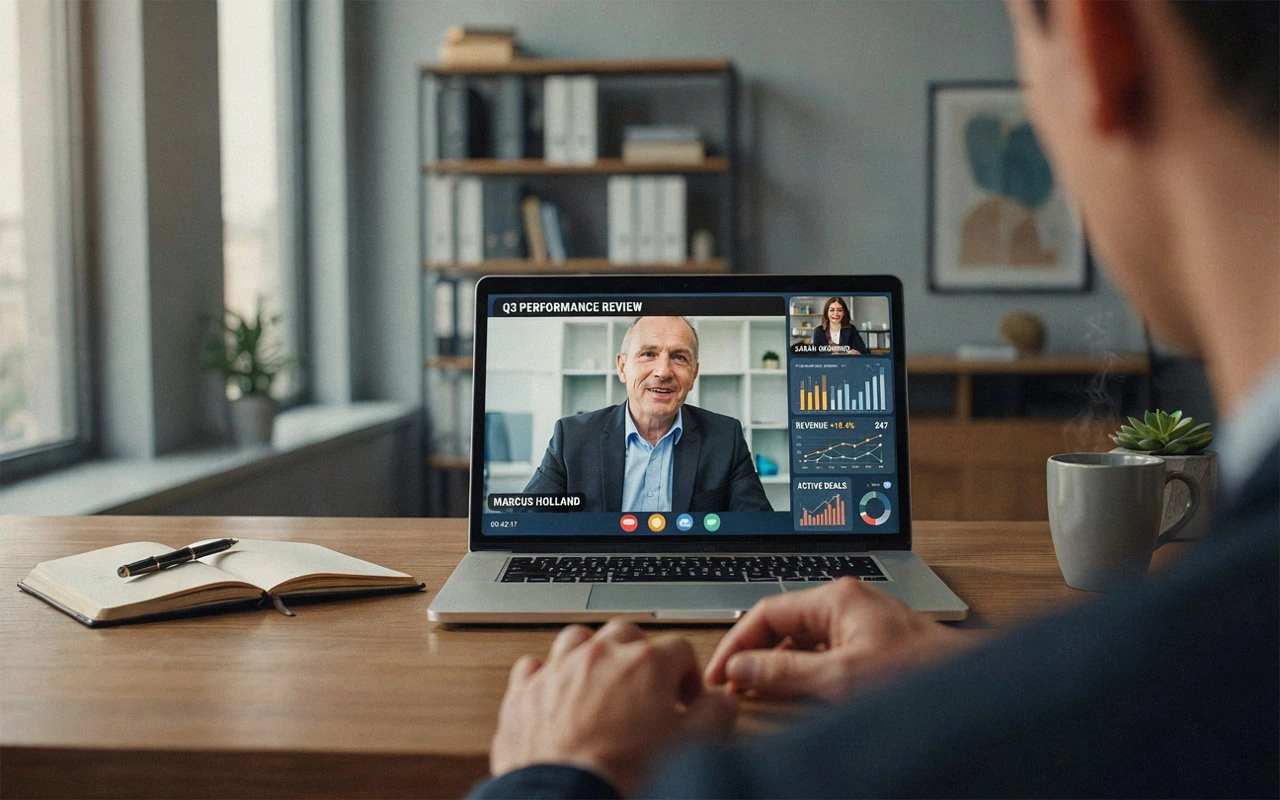
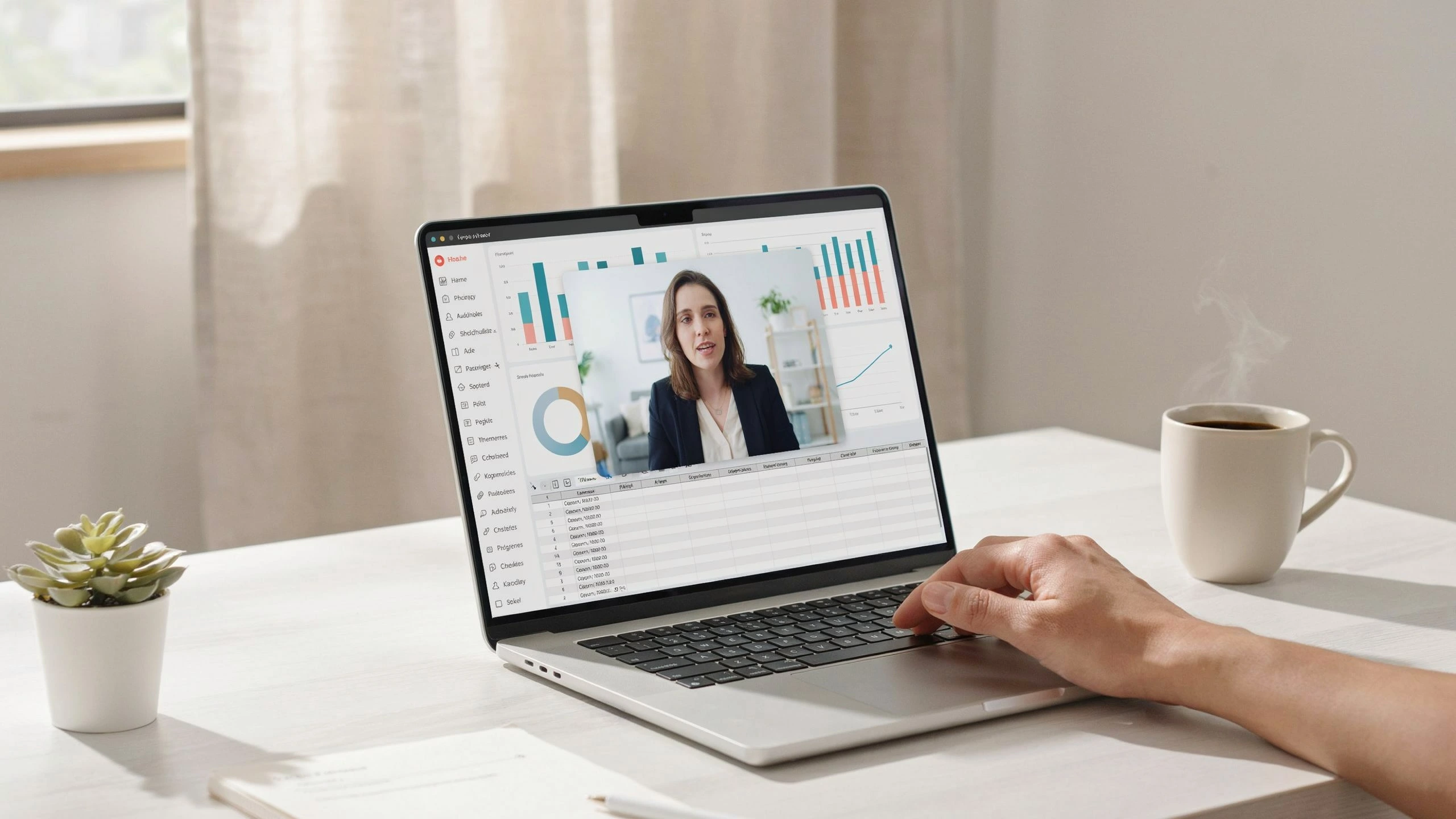
Remote worker at a desk using the best remote work tools of 2026

10 Best Remote Work Tools in 2026 (Free & Paid)


10 Best Remote Work Tools in 2026 (Free & Paid) | Remote Work Setup


Software & Tools · Productivity

10 Best Remote Work Tools in 2026:
Free & Paid — The Only List You Need

The problem is rarely a missing tool. It’s usually too many tools pulling you in too many directions. Here are the ten that actually cover the ground — and how to pick the three or four you truly need.

📅 June 2026
⏱ 14 min read
📖 Remote Workers · Freelancers · Small Teams

Remote worker at a desk using the best remote work tools of 2026
⚡ Key Takeaways

  • The best remote work tools in 2026 cover five areas — communication, video calls, project management, documentation, and async updates — you need at least one solid tool in each.
  • You do not need to pay for everything. Slack, Zoom, Notion, Asana, and Trello all have free plans that work well for solo workers and small teams.
  • AI features are now built into most major remote work tools in 2026, from meeting summaries to automated task creation — ignoring them leaves real time savings on the table.
  • The biggest remote work mistake is using too many tools. The strongest remote teams run four to six core tools — not fifteen.
  • Tool choice should match how your team actually works — mostly async teams should prioritize Notion and Loom; mostly live-call teams should prioritize Zoom and Slack.
  • Every tool on this list integrates with the others — picking two or three tools from the same category creates redundancy and costs money you don’t need to spend.

The Problem Isn’t a Missing Tool — It’s Too Many of Them

Remote workers in 2026 are drowning in apps. There’s a chat app for quick questions, a video app for meetings, a task app for projects, a docs app for notes — and somehow nothing actually talks to anything else. You spend twenty minutes a day just searching for a file you know you saved somewhere.

The goal of this guide isn’t to hand you a longer list. It’s to give you a shorter, smarter one. These ten tools were chosen because they cover the most ground, play well together, and don’t require an IT department to set up. Each entry covers what it does, who it’s best for, what it costs, and whether the free plan is actually worth using.

By the end, you’ll have a clear picture of which two or three tools you genuinely need — and which ones you can stop paying for.

What Are Remote Work Tools — and Why Do They Matter in 2026?

Remote work tools are cloud-based software platforms that let individuals and teams communicate, manage projects, collaborate on documents, and track work without being in the same physical location. They’re the digital equivalent of your office building, meeting rooms, shared whiteboards, and filing cabinets — all in one place, accessible from anywhere.

In 2026, remote work has moved from an exception to a default. A team can have brilliant people and ambitious goals, but if messages get buried and nobody knows where the latest file lives, productivity leaks fast. The right stack solves five problems simultaneously: keeping communication clear, making project progress visible, enabling real-time and async collaboration, storing shared knowledge, and reducing unnecessary meetings.

How We Chose These 10 Tools

Every tool on this list had to clear the same bar. It needed to:

  • Solve a distinct problem without duplicating another tool on the list
  • Have a free plan or a genuinely affordable paid tier
  • Work well for solo remote workers, freelancers, and small teams alike
  • Integrate with at least a few other tools on the list
  • Have a track record of reliability in 2026 — not just hype

Checking remote work tools and apps on a phone during a work session

The 10 Best Remote Work Tools in 2026


🥇 #1 — Best for Team Communication
SlackBest for: Any remote team that communicates daily; freelancers managing multiple clients
From $7.25/user/mo
CategoryCommunication
Free PlanYes
Setup TimeUnder 10 min
IntegrationsAsana, Notion, Drive

Free Plan Limit90-day message history, restricted integrations
Best FeatureChannel-based organization by project, client, or topic
AI FeaturesAI-generated channel and thread recaps

Slack is a channel-based messaging platform that replaces email for internal team communication. Instead of long email chains, conversations get organized into channels by project, team, or topic — so the right information reaches the right people without clogging everyone’s inbox. It remains one of the most widely used remote collaboration tools because it’s built around both real-time and asynchronous communication.

remoteworksetup.info verdict

Works especially well for freelancers managing multiple clients — one channel per client, all conversations searchable forever. For solo workers or teams just starting out, the free plan is fine; for serious daily use, the paid plan is worth it.

⚠️ Watch Out ForSlack can destroy your focus if you let it. Turn off notifications during deep work hours — not every message needs an immediate reply, that’s what channels are for.

🥈 #2 — Best for Video Meetings
ZoomBest for: Client-facing professionals and anyone doing frequent video calls
From $13.32/user/mo
CategoryVideo Calls
Free PlanYes — 40 min group cap
Guest AccessNo account needed
IntegrationsGoogle Calendar

Free Plan Limit40-minute cap on group calls
Best FeatureOne-click guest join, no software install required
ReliabilityKnown for stable performance across devices

Zoom is the most widely used video conferencing platform for remote workers — known for reliable performance, simple guest access, and consistent quality across devices. Whether it’s a one-on-one client call, a team standup, or a 500-person webinar, Zoom handles it without asking participants to create an account or install complicated software.

remoteworksetup.info verdict

Genuinely useful for solo workers on the free plan — for client calls under 40 minutes (most of them), it just works. Zoom’s one-click join for guests is still unbeatable.

⚠️ Watch Out ForZoom fatigue is real. Use it for meetings that genuinely need a face-to-face. For quick updates and async feedback, Loom (#8 on this list) is a much better choice.

🥉 #3 — Best for Documentation & Knowledge Management
NotionBest for: Freelancers managing multiple projects; small teams needing a shared knowledge base
From $10/user/mo
CategoryDocumentation
Free PlanYes
Learning CurveModerate
AI FeaturesNotion AI

Free Plan LimitTeam collaboration limits at scale
Best FeatureAll-in-one notes, wikis, and databases in one linked workspace
AI FeaturesSummarize documents, turn notes into action items, draft briefs

Notion is an all-in-one workspace for notes, wikis, databases, and project tracking — the place your team stores everything it needs to remember. Think of it as a smarter, more flexible version of Google Docs that doubles as a project management tool when you need it. In 2026, Notion’s AI features have become genuinely useful for repetitive writing tasks.

remoteworksetup.info verdict

Solid for personal use and solo workers on the free plan. Teams will eventually hit collaboration limits and want to upgrade, but there’s no rush.

⚠️ Watch Out ForNotion has a learning curve. It’s incredibly flexible, which makes it easy to over-engineer your workspace. Start simple — one page for projects, one for notes — and add complexity only when you need it.

#4 — Best for Project Management
AsanaBest for: Teams managing complex, multi-step projects with multiple people involved
From $10.99/user/mo
CategoryProject Management
Free PlanYes — up to 10 users
ViewsList, board, timeline, calendar
AI FeaturesAI task suggestions

Free Plan LimitUp to 10 users, no timelines/reporting/automations
Best FeatureMultiple project views without disrupting the shared project

Asana is a project management platform built to answer one question at all times: who is doing what, by when? Every task has a clear owner, a due date, and a status. What makes it particularly strong for remote teams is its multiple views — list, Kanban board, timeline, or calendar — so different team members can work however makes sense for them.

remoteworksetup.info verdict

The free plan is genuinely good — unlimited tasks and projects for up to 10 users. You only need to pay when you need timelines, reporting, or automations.

⚠️ Watch Out ForAsana can feel overwhelming at first because of how many features it has. Ignore everything except tasks, projects, and due dates when you start, then build from there.

#5 — Best All-in-One for Individuals & Small Teams
Google WorkspaceBest for: Solo freelancers and small teams who want one subscription to cover most needs
From $7/user/mo
CategoryAll-in-One
Free PlanGmail/Drive (personal)
IncludesEmail, Meet, Docs, Drive, Calendar
SetupBrowser-based, no install

Free Plan LimitNo custom domain email on the personal tier
Best FeatureOne subscription covers email, calls, docs, storage, and scheduling

Google Workspace combines email, calendar, video calls, real-time document editing, and cloud storage into a single connected system — making it the closest thing to a complete remote office in one subscription. For remote workers who want to keep their tool count low, it’s the most efficient choice.

remoteworksetup.info verdict

The free personal Google account is excellent for individuals. The paid Business plan adds a custom domain email, which matters for professional credibility.

⚠️ Watch Out ForGoogle Meet is fine for calls but lacks some of Zoom’s large-group features. If you run frequent webinars or client presentations with external guests, keep Zoom alongside Workspace.

#6 — Best for Teams That Want Everything in One Place
ClickUpBest for: Remote teams or freelancers overwhelmed by too many separate tools
From $7/user/mo
CategoryAll-in-One Productivity
Free PlanYes — unlimited members
Task Views15+ including Mind Maps
Storage (Free)100MB

Free Plan Limit100MB storage on the free tier
Best FeatureTasks, docs, goals, time tracking, and chat in one workspace

ClickUp is an all-in-one productivity platform that combines task management, documents, goals, time tracking, and team chat in a single workspace — positioning itself as the app that replaces your project manager, your docs tool, and your time tracker simultaneously. For teams struggling with app sprawl, it makes a compelling case for consolidation.

remoteworksetup.info verdict

Surprisingly generous free plan — unlimited tasks, unlimited members. One of the best free plans on this list for what you get.

⚠️ Watch Out ForClickUp’s biggest strength (it does everything) is also its biggest weakness. The feature density can overwhelm new users — give yourself two weeks before deciding if it’s the right fit.

#7 — Best Simple Project Manager for Beginners
TrelloBest for: Solo freelancers, beginners to project management, simple visual tracking
From $5/user/mo
CategoryProject Management
Free PlanYes — 10 boards/workspace
Learning CurveVery low
StructureCards + columns (Kanban)

Free Plan Limit10 boards per workspace, basic automation
Best FeatureDrag-and-drop cards through stages — no training required

Trello is a visual project management tool built around cards and boards — the simplest way to see all your tasks, move them through stages, and never lose track of what needs to happen next. Each task is a card, cards live in columns like “To Do,” “In Progress,” and “Done,” and you drag cards across columns as work progresses. That’s the whole system.

remoteworksetup.info verdict

Excellent for individuals and small teams. Unlimited cards, up to 10 boards per workspace — most solo workers will never need to upgrade.

⚠️ Watch Out ForTrello is intentionally simple, which means it hits a ceiling fast for complex projects with dependencies, timelines, or multiple teams. Look at Asana or ClickUp instead in those cases.

#8 — Best for Async Video Updates
LoomBest for: Freelancers giving client feedback; anyone replacing meetings with two-minute videos
From $12.50/user/mo
CategoryAsync Video
Free PlanYes — 25 videos
Best UseOne-way information transfer
FormatScreen + camera + instant link

Free Plan Limit25 videos on the free tier
Best FeatureReplaces meetings that didn’t need to happen

Loom is a screen and camera recording tool that lets you record a short video and share a link instantly — replacing a meeting that didn’t need to happen. It’s especially powerful for design feedback, code reviews, onboarding new clients, and explaining complex ideas that are hard to convey in text. This is the most underused category of remote work tool.

remoteworksetup.info verdict

25 free videos is generous enough to trial the tool seriously — you’ll know within a week whether it changes how you work.

⚠️ Watch Out ForLoom doesn’t replace synchronous collaboration. For brainstorming, live problem-solving, or emotional conversations, a real call is still better.

#9 — Best for Security (Non-Negotiable)
1PasswordBest for: Every remote worker, no exceptions — especially freelancers with multiple client accounts
From $2.99/user/mo
CategorySecurity
Free PlanNo
Setup Time~1 hour initial import
Core JobStore, generate, autofill passwords

Free Plan LimitNone available — paid only
Best FeatureSecure credential sharing for teams

1Password is a password manager that stores, generates, and autofills strong passwords for every app and website you use — so you never reuse a weak password or forget a login again. For remote workers accessing sensitive client systems, cloud accounts, and financial tools from home networks, strong credential management is not optional.

remoteworksetup.info verdict

There’s no free plan, but at under $3/month this is the cheapest insurance policy on this list. Losing access to a client account over a compromised password is a productivity catastrophe — prevention is always cheaper.

⚠️ Watch Out ForInitial setup takes about an hour as you import and update existing passwords. Do it on a quiet afternoon — after that, it runs silently in the background.

#10 — Best Free Time Tracker for Freelancers
ClockifyBest for: Freelancers who bill by the hour; agencies tracking billable time per client
From $4.99/user/mo
CategoryTime Tracking
Free PlanYes — unlimited users & tracking
ReportingIncluded free
Use CaseBilling, invoicing, time audits

Free Plan LimitAdvanced payroll/scheduling reserved for paid tiers
Best FeatureUnlimited users and tracking, entirely free

Clockify is a time tracking tool that lets you record how long you spend on each project, client, or task — and turn that data into reports you can share with clients or use for invoicing. If you bill by the hour or manage retainers, Clockify makes sure you’re actually charging for all the time you spend.

remoteworksetup.info verdict

One of the most generous free plans on this entire list — unlimited users, unlimited tracking, project reporting. Almost no reason to upgrade unless you need advanced payroll features.

⚠️ Watch Out ForTime tracking only helps if you track consistently. Set a habit of starting the timer the moment you open a client file — it takes about three days to make it automatic.

The Lean Remote Work Stack: What to Actually Use

You do not need all ten of these tools. Most remote workers need four or five. Here’s a recommended starting point based on your situation:

Solo Freelancer (Just Starting Out)

  • Notion — notes + projects
  • Zoom — client calls
  • Trello — task tracking
  • Clockify — time tracking
  • 1Password — security

Freelancer With Multiple Clients

  • Slack — client comms
  • Zoom — calls
  • Notion — documentation
  • Asana — project tracking
  • Loom — async feedback
  • 1Password — security

Small Remote Team

  • Google Workspace — email + docs
  • Slack — communication
  • Asana or ClickUp — projects
  • Loom — async updates
  • 1Password — security

💡 Simple RulePick one tool per category — one communication tool, one project manager, one docs tool, one video tool, one security tool. Then stop adding.

Only on RemoteWorkSetup.info — The “Tool Audit” Method

After reviewing how dozens of remote workers and freelancers build their tool stacks, our team noticed one consistent pattern among the most productive people: they do a quarterly tool audit.

🔍 The Quarterly Tool AuditRun this every three months before renewing any subscription.

  1. List every tool you’re paying for or using regularly.
  2. Next to each one, ask: did I use this at least once a week this quarter?
  3. Ask: does it save me more time than it costs to maintain?
  4. Ask: can one of my other tools already do this?

If a tool fails any two of those three questions:
→ Cut it — don’t wait for the annual renewal
→ Check if a tool you already keep can absorb the gap
→ Cancel before the next billing cycle, not after
In our testing, this method typically eliminates two to three tools per person — saving anywhere from $20 to $80 per month and reducing the mental overhead of managing too many apps.

Pro Tips for Getting the Most from Your Remote Work Tools

  1. Integrate your tools from day one. Slack connects to Asana, Notion, and Google Drive. Zoom connects to Google Calendar. ClickUp connects to almost everything. Five minutes of integration setup saves hours of manual copy-paste work over a year.
  2. Use the AI features already built into your tools before buying new ones. In 2026, Notion has AI summarization, Slack has AI recaps, and Asana has AI task suggestions. Explore what your current tools already offer before adding a dedicated AI tool to your stack.
  3. Set communication norms, not just tools. A great Slack setup still fails if your team expects instant replies to every message. Decide upfront what goes in Slack vs. email vs. Asana, and what response time is expected per channel.
  4. Do not judge a tool in the first week. Every new tool feels clunky at first. The real test is week three, after setup friction fades. If it still feels like extra work by then, it’s probably not the right fit.

4 Common Remote Work Tool Mistakes to Avoid

  1. Adding a new tool every time you have a problem. Most problems are caused by not using your existing tools properly — not by missing a tool. Spend two hours with your current stack’s help docs before adding anything new.
  2. Using email for project management. Email is for external communication. The moment you start managing tasks via email threads, things go missing and nothing has a clear owner. Move all project work to Asana, ClickUp, or Trello.
  3. Skipping the free trials. Most of these tools offer 14- to 30-day trials of their paid plans. Always trial a paid plan before committing to an annual subscription — free and paid tiers are often very different experiences.
  4. Building your stack alone without team input. If you manage other people, involve them in the tool selection. A tool your team resents using is worse than the problem it was supposed to solve.

Frequently Asked Questions

What are the best free remote work tools in 2026?The best free remote work tools in 2026 are Slack (communication), Zoom (video calls, with a 40-minute group call limit), Notion (documentation and notes), Asana (project management, up to 10 users), Trello (simple task tracking), and Clockify (time tracking). Used together, these six tools cover almost every remote work need without spending a dollar. The only non-negotiable paid addition is a password manager like 1Password, at under $3/month.
How many tools does a remote worker actually need?Most remote workers need four to six tools at most — one for communication, one for video calls, one for project management, one for documentation, one for security, and optionally one for async video. The biggest mistake is collecting too many tools, which creates more context-switching, more monthly fees, and more time wasted figuring out where things are. Start with the minimum and add only when a real gap appears.
What is the best remote work tool for freelancers specifically?For most freelancers, the best starting stack is Notion (project notes and client wikis), Zoom (client calls), Trello or Asana (task tracking), Clockify (time and billing tracking), and 1Password (credential security). This covers communication, project visibility, time tracking, and security at minimal cost. As you take on more clients or more complex projects, Slack and Loom become worth adding.
Is Slack or Microsoft Teams better for remote work?It depends on your existing setup. If your organization already uses Microsoft 365, Teams integrates deeply and is already included in your subscription — there’s little reason to pay for Slack on top. If you’re a freelancer, startup, or team without existing Microsoft tools, Slack is typically faster to set up, more intuitive for small teams, and has a more useful free plan. Both do the job well — the answer is whichever fits your existing ecosystem.
Do remote work tools really improve productivity, or is it just more software?The right tools, used consistently, genuinely improve productivity — but only when they replace confusion rather than add to it. If you spend twenty minutes a day searching for a file saved in the wrong place, a proper documentation tool eliminates that. If you hold three meetings a week that could be a two-minute Loom video, you recover hours. Tools improve productivity when they reduce the time you spend managing work rather than doing it.

The Right Stack for the Right Situation

The best remote work tools in 2026 are not the most feature-rich or the most expensive. They’re the ones that fit how you actually work, integrate with each other cleanly, and get used consistently every single day.

Start with the basics: one communication tool, one project manager, one place for shared knowledge, one video tool, and a password manager. Get those working well before adding anything else. Most remote workers who feel overwhelmed by their tools aren’t missing software — they’re using too much of it.

Pick two or three tools from this list, trial them for a month, and build from there. A lean stack done well beats a sprawling one every time.

Sources & Further Reading:  
RemoteWorkSetup.info — Tech Equipment Guide  · 
Home Office Setup Guide  · 
RemoteWorkSetup.info Blog


Shopping Basket