2026 Complete Guide
Budget Friendly Remote Work Setup Complete Guide for Beginners
A budget-friendly setup does not mean compromising on quality. Whether you have $300, $500, or $700 to spend, this guide helps you build a professional remote work setup without breaking the bank. From the right desk and chair to monitors and accessories, we cover everything you need to create a comfortable, productive, and professional budget-friendly setup at home.
Table of Contents
Toggle
What Is a Budget Friendly Remote Work Setup?
A budget friendly remote work setup is a home office that meets all your work needs without costing a fortune. It includes the basic tools and tech equipment you need to work efficiently from home.
A good remote work setup does not have to be fancy. It just needs to be functional, comfortable, and distraction-free. The goal is to help you stay focused and productive every day.
Why a Budget-Friendly Setup Matters for Your Productivity
Your workspace has a big impact on your performance. A well-organized home office setup helps you stay motivated, focused, and professional. Even small improvements can make a huge difference in how you work.
Here is why investing in your workspace matters:
- Better focus and fewer distractions
- Less physical pain from a proper ergonomic workspace
- More professional appearance during video calls
- Improved mood and energy throughout the day
- Higher overall work output and job satisfaction
Essential Items for a Budget Friendly Setup
You do not need dozens of gadgets to build a functional remote work setup. Here are the core items you should focus on first.
01
Laptop or Computer
You don't need the latest model. A reliable mid-range laptop with 8GB RAM handles most remote work tasks. Consider refurbished options to save money.
- Look for certified pre-owned laptops
- Consider Chromebooks for basic tasks
- Prioritize battery life over specs
02
Budget Ergonomic Chair
A bad chair causes back pain fast. You don't need to spend $500 — many chairs under $150 offer solid lumbar support.
- Adjustable height and armrests
- Good lower back support
- Budget range: $80–$150
03
Affordable Desk
Keep it simple. A clean, stable desk at the right height is all you need to start.
- IKEA LINNMON + ADILS legs (under $50)
- Folding tables work great for small spaces
- Check Facebook Marketplace for second-hand deals
04
Proper Lighting
Poor lighting causes eye strain and looks bad on video calls. Natural light is free — use it.
- Sit near a window
- Add a ring light for calls (under $20)
- Avoid bright windows behind you
05
Internet Connection
Aim for at least 25 Mbps. A slow connection kills productivity fast.
- Use wired Ethernet when possible
- Try a Wi-Fi extender for weak spots
- Restart your router regularly
💡 The Budget Rule That Changes Everything
Buy the best chair you can afford. Buy the cheapest desk that is sturdy enough. A great chair at a basic desk feels far better than a beautiful desk with a painful chair. Every experienced remote worker learns this — most just learn it too late.
Budget Friendly Desk Setup Ideas
Once you have the essentials, you can start making your workspace feel more like a real home office setup. Small additions can make a big difference in both comfort and productivity.
Here are some easy and affordable desk setup ideas:
- Laptop Stand: Raise your screen to eye level to reduce neck strain. A simple stand costs $15–$25.
- External Keyboard & Mouse: Pair with your laptop stand for a more comfortable typing position. Budget options start at $20.
- Cable Management: Use velcro ties or adhesive clips to keep wires tidy and organized. Cost: under $10.
- Monitor Riser: A simple riser or even a few books can lift your monitor to the right height.
- Noise-Cancelling Headphones: Affordable options like Anker Soundcore offer great noise isolation under $50.
- Desk Plant: A small plant improves mood and air quality. Many varieties are very low-cost.
- Sticky Note Board: Use a corkboard or whiteboard for quick notes and task reminders.
Three Budget-Friendly Setup Levels $300, $500 and $700
Starter Setup
Under $300
Your starter setup — essentials only, best value at every price point. Already have a laptop? You’re halfway to a fully functional home office.
Budget ergonomic chair (lumbar support)
~$70
Simple sturdy desk (47 inch)
~$60
Keyboard & mouse combo (wireless)
~$30
LED desk lamp (adjustable)
~$20
Monitor — 22 inch used or basic
~$80
Ethernet cable (10 ft)
~$10
Basic wired headset for calls
~$25
Estimated Total
~ $295
Sweet Spot Setup
Under $500
The sweet spot for most remote workers. $500 gets you a comfortable, professional setup that handles any job with ease — and lasts for years.
Budget ergonomic chair (mesh, lumbar)
~$120
Solid desk + cable management(55inch)
~$100
Wireless keyboard & mouse combo
~$50
Adjustable LED desk lamp
~$25
24 inch Full HD monitor (eye-care)
~$150
Ethernet cable (10 ft)
~$10
Monitor stand or arm
~$25
Cable management clips
~$10
Estimated Total
~ $490
Complete Setup
Under $700
Starting from zero? This covers everything — including the laptop. The rest of the setup stays lean, but every item is reliable and built to last.
Budget reliable laptop (Chromebook or refurbished)
~$300
Ergonomic chair with lumbar support
~$120
Sturdy desk (47–55 inch)
~$80
Wireless keyboard & mouse combo
~$80
LED desk lamp
~$20
Ethernet cable
~$10
Laptop stand + cable organizer
~$25
Noise-canceling earbuds
~$35
HD webcam (1080p)
~$25
Mouse pad (large desk mat)
~$20
Estimated Total
~ $695
⚠️ What to avoid at this budget: Don’t buy a chair under $50. They look fine but have no real lumbar support and will cause back pain within a month. A $70 chair with adjustable height and a lumbar cushion is miles ahead. Check Facebook Marketplace or Craigslist for second-hand office chairs — you can often find $200 chairs for $40 in excellent condition.
Tips to Save Money on Your Budget-Friendly Setup
Building a great remote work setup does not mean spending a lot at once. Smart shopping and a little creativity can go a long way.
- Buy second-hand items from thrift stores, eBay, or Facebook Marketplace
- Wait for seasonal sales like Black Friday or back-to-school deals
- Start with the basics and add more items over time
- Check if your employer offers a remote work equipment stipend
- Use free software like Google Docs, Slack free tier, and Zoom basic
- Repurpose items you already own — a dining chair with a cushion works well
- Ask friends or family if they have spare office furniture to give away
Common Mistakes to Avoid
Many beginners make the same mistakes when setting up their home office setup. Knowing what to avoid will save you time, money, and frustration.
- Working from your couch or bed: This hurts your posture and destroys your focus. Always use a proper desk and chair.
- Ignoring cable management: Messy cables create clutter and stress. Take 10 minutes to organize them.
- Bad lighting for video calls: A dark or backlit room looks unprofessional. Fix your lighting before your next meeting.
- Skipping breaks: Even the best ergonomic workspace cannot replace regular movement. Take a 5-minute break every hour.
- Buying everything at once: Start with essentials and upgrade slowly. Overspending early creates financial stress.
- No dedicated workspace: Working in a shared or noisy space makes it hard to concentrate. Even a small dedicated corner helps.
- Neglecting your internet setup: A slow connection hurts your performance. Test your speed at speedtest.net and upgrade if needed.
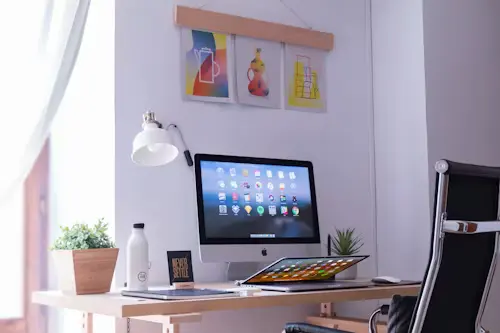
Raise your monitor with books — Stack three or four thick books under your laptop or monitor to bring it to eye level. Completely free, works perfectly.
Use your dining table as a desk — A solid dining table is often a better work surface than many budget desks. Add a monitor stand and you’re set.
Use a box as a footrest — If your chair is too high for your feet to rest flat, a sturdy box or thick book under your feet fixes posture immediately.
Roll a towel for lumbar support — Roll a medium towel and place it at the curve of your lower back. Replaces a $30 lumbar cushion for zero cost.
🛒 Where to Buy Second-Hand
Facebook Marketplace — The best source for second-hand office chairs and desks. Office furniture sells for 20 to 30 cents on the dollar when companies downsize.
Craigslist — Great for local furniture, monitors, and keyboards. Always test before you pay.
Office liquidation sales — When local businesses close or downsize, their office furniture often sells for almost nothing. Search “office liquidation [your city]” to find sales near you.
eBay refurbished laptops — Certified refurbished listings come with a warranty and are significantly more reliable than private sales.
Amazon Warehouse deals — Returned or slightly damaged items sold at 20 to 40% off. The damage is usually cosmetic — a small scratch on a desk that sits against a wall anyway.
Top 10 Productivity Tips for Remote Workers
A great remote work setup is just the start. Building good daily habits will help you get the most out of your workspace.
- Set a consistent start and end time every day to create routine
- Get dressed as if you are going to the office — it shifts your mindset
- Use the Pomodoro technique: 25 minutes of work, 5 minutes of rest
- Create a to-do list each morning and prioritize your top three tasks
- Turn off social media notifications during deep work sessions
- Keep your desk clean and clutter-free at the end of each day
- Take regular breaks and stretch to avoid physical tension
- Use a dedicated work browser profile to separate work from personal browsing
- Communicate clearly with your team using chat tools like Slack or Teams
- Celebrate small wins — remote work can feel isolating, so stay motivated
Best second-hand find:
A Herman Miller or Steelcase ergonomic chair on Facebook Marketplace. These chairs retail for $800 to $1,500 new and regularly appear second-hand for $80 to $150 in great condition. If you find one in your city, buy it immediately — it is the single best budget home office upgrade available.
When to Upgrade and What to Upgrade First
A budget setup is a starting point, not a permanent destination. As your work grows and your income increases, upgrading the right items at the right time makes a big difference. Here's the order that delivers the most improvement per dollar spent.
Upgrade Chair First: If your back or neck hurts regularly, stop everything and upgrade your chair. No other improvement will have more immediate impact on how you feel every day.
Then Monitor: Moving from a laptop screen to a 24-inch external monitor is the second biggest productivity upgrade available. More screen space = less switching, less squinting, less fatigue.
Then Sit-Stand Desk: Once chair and monitor are sorted, a sit-stand desk is the next meaningful health upgrade. It keeps you moving and prevents the energy slumps that hit in the afternoon.
🚫 What NOT to Upgrade
Some upgrades look impressive but make almost no difference to your daily work. Before spending money on these, make sure everything above is already sorted.
Expensive desk accessories — A $50 desk organiser does the same job as a $5 one from a dollar store. Organisation is the goal, not the container.
Ultra-wide monitors before you need them — A single 24-inch monitor handles most remote work perfectly. An ultra-wide is a luxury upgrade, not a foundation purchase.
Standing desk mats before a standing desk — Don’t buy a standing desk mat until you actually have a standing desk. It sounds obvious but people do this.
Expensive webcams for occasional calls — Most modern laptop cameras are perfectly adequate. Only upgrade your webcam if you’re on video calls for several hours a day or creating video content.
The Best Budget Upgrade of All: It's Free
Spend 30 minutes adjusting what you already own. Raise your monitor to eye level. Move your chair to the right height. Reposition your lamp. Tidy your cables. These zero-cost adjustments deliver more comfort improvement than most paid upgrades — and most people skip them entirely.