
2026 Complete Guide
Ergonomic Workspace: How to Set Up Your Desk
Most people set up their desk once and never touch it again. But a poorly arranged workspace quietly causes back pain, neck stiffness, wrist problems, and tired eyes — every single day. The good news? Creating a proper ergonomic workspace takes less than 30 minutes, and the relief you feel is almost immediate. This guide walks you through every step.
Table of Contents
Toggle
Why Your Desk Setup Has a Bigger Impact Than You Think
Imagine sitting in a slightly awkward position for just one hour. Uncomfortable but manageable, right? Now imagine doing that for six to eight hours a day, five days a week, for months on end. That is what a bad desk setup does to your body — slowly and quietly.
Ergonomics is simply the practice of arranging your workspace to fit your body — not forcing your body to adapt to your workspace. When the two are properly aligned, you stay comfortable, think more clearly, and avoid the chronic aches that push so many remote workers toward physiotherapy.
01
Less Back Pain
The right chair and desk height keep your spine in its natural curve, preventing the lower back tension that builds slowly and becomes chronic.
02
Healthier Eyes
The correct monitor distance and proper lighting cut down the eye fatigue, afternoon headaches, and blurred vision that come from too many hours in front of a screen.
03
Sharper Focus
Physical discomfort is a constant, low-level distraction. Remove it and your concentration improves naturally — without any extra effort.
📌 Remember This
You do not need expensive equipment to build a proper ergonomic workspace. Most of the improvements in this guide cost nothing at all — they are simply about placing what you already own in the right position.
Set Up Your Chair Your Most Important Piece of Furniture
Your chair is the single most important element of your entire desk setup. Everything else — your desk height, monitor position, keyboard placement — gets adjusted around it. So before you touch anything else, get your chair right first.
🪑 How to Adjust Your Chair Correctly
Sit all the way back so your lower back presses gently against the backrest. Your feet should rest flat and comfortably on the floor. Your knees should form a 90-degree angle, with your thighs roughly parallel to the ground.
Seat height —Feet flat on the floor, knees at 90 degrees, thighs level.
Lumbar support — The backrest curve should sit right at the inward curve of your lower back.
Armrests — Adjust so your elbows rest naturally with your shoulders completely relaxed.
Seat depth—Leave a two to three finger gap between the front edge of the seat and the back of your knees.
⚠️ Common Mistake: The most common chair mistake: sitting too far forward and using only half the seat. This puts all the pressure on your lower back. Always sit fully back so the backrest is actually supporting your spine.
💡 No lumbar support? No lumbar support on your chair? Roll up a small towel and place it at the curve of your lower back. It is a free fix that makes an immediate and noticeable difference to posture and back comfort.
Position Your Desk and Monitor at the Right Height
Once your chair is set, your desk and monitor positions follow naturally. The aim is simple — everything you reach for should be within easy range, and your head should stay in a neutral position throughout the day. Not tilted up, not dropped down, not twisted to the side.
🖥️ Monitor Position — The Biggest Fix Most People Need
If there’s one single change that makes the biggest difference to neck and shoulder pain, it’s raising your monitor. Most people have their screens way too low, which forces them to look down all day — putting huge strain on the neck and upper back.
Height
The top edge of your screen should sit at or just below your eye level.
Distance
About an arm’s length away — roughly 20 to 28 inches from your face.
Angle
- Tilt the screen back slightly, between 10 and 20 degrees, to reduce glare and neck tension.
Desk Height Check
Sit at your desk with good posture and rest your hands on the keyboard. Your elbows should bend at roughly 90 degrees. If your shoulders creep upward, your desk is too high. If you find yourself leaning forward, it is too low. Both cause problems over time.
📚 No monitor stand? Stack a few thick books or a sturdy box under your screen. Even a three-inch lift makes a visible and immediate difference to your posture. It costs nothing and works just as well.
Set Up Your Keyboard and Mouse to Protect Your Wrists
Wrist and hand problems are among the most common complaints from remote workers — and almost entirely preventable. The root cause is almost always the same: a keyboard or mouse that forces the wrist into an unnatural angle for hours at a time.
⌨️ Keyboard Placement
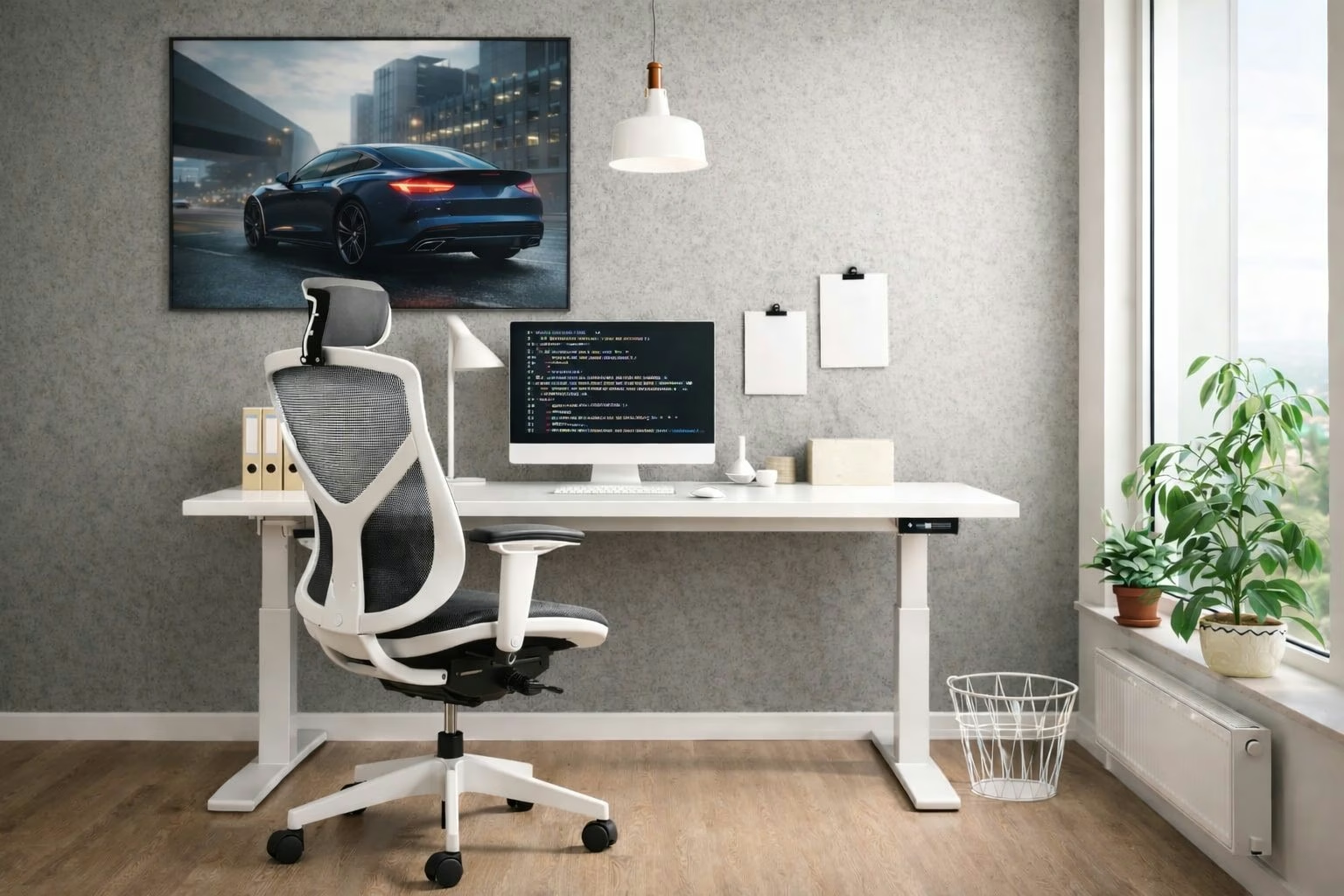
Pull your keyboard close enough that your elbows stay beside your body rather than stretched out in front of you. Your wrists should be straight and level when your fingers rest on the keys — no upward bend, no downward angle.
Keep it close—Elbows stay at your sides. If you are reaching forward to type, move the keyboard closer.
Wrists straight—Fold down the legs on the back of your keyboard. A tilted keyboard bends your wrists backward all day.
Use a wrist rest—Use it between typing bursts to rest your wrists — not while actively pressing keys.
Flat keyboard tilt—No upward or downward bend when your fingers are resting on the keys.
🖱️ Mouse Placement
Place your mouse directly beside your keyboard so you are not constantly reaching sideways to use it. Your whole hand should rest naturally on the mouse — not just your fingertips. If you use a mouse heavily throughout the day, an ergonomic vertical mouse is worth considering, as it keeps your forearm in a more relaxed position.
⚠️ Watch for This:
Tingling, numbness, or a dull ache in your wrists after long sessions is an early warning sign of repetitive strain. Do not ignore it. Adjust your keyboard and mouse position immediately and take more frequent short breaks before it becomes something more serious.
Get Your Lighting Right It Matters More Than You Think
Lighting is the most underrated part of any desk setup. Poor lighting does not just cause eye strain — it causes headaches, afternoon energy crashes, and makes you look unprofessional on video calls. A few small changes here make a noticeable difference to how you feel by the end of the day.
☀️ Natural Light — Position It Correctly
Natural daylight is the best light source for desk work. But the direction it comes from matters enormously. Position your desk so the window is to your side — not directly behind your screen and not shining into your face. Side light gives you the brightness benefits without the glare or the backlit silhouette on video calls.
Side lighting —Place your desk perpendicular to the window for the most comfortable natural light.
Desk lamp — Use an adjustable LED lamp for dark days and late afternoon sessions when natural light fades.
No glare on screen — If you see reflections on your monitor, reposition your lamp or tilt your screen slightly.
Warm light in the evening — Switch to warmer bulbs in the afternoon to protect your sleep quality that night.
🎥 For video calls: place a lamp or small ring light facing you — not behind you. Light behind you turns you into a silhouette on camera. Even a basic desk lamp pointed at your face makes you look dramatically more professional in meetings.
The Detail Most People Completely Forget
Even the best ergonomic setup in the world won't help if you sit in the same position for six hours straight. Your workspace is the foundation—but healthy habits are what actually keep you pain-free and productive long-term.
- Both feet flat on the floor at all times — no dangling, no tucking under the chair
- Knees at a 90-degree angle when seated — thighs parallel to the ground
- Use a footrest if your feet do not reach the floor comfortably when your chair is at the right height
- Never cross your legs for long periods — it restricts blood flow and twists your lower spine
- A budget footrest costs under $25 and makes a genuine difference to lower back and hip comfort
Build the Habits That Keep You Pain-Free
Even the most carefully arranged ergonomic workspace cannot help you if you sit completely still for six hours straight. Your setup is the foundation — but daily movement habits are what actually keep your body comfortable over months and years.
⏰ Move Every Hour — Without Exception
Set a timer for every 60 minutes. When it goes off, stand up, walk somewhere, and do a few light stretches for two minutes. That is all. This one habit prevents most of the muscle stiffness, poor circulation, and back pain that remote workers deal with. Your body needs regular movement — even the best chair in the world cannot replace it.
Neck Roll
Slowly roll your head ear to shoulder and chin to chest. Releases the tension that builds from long screen sessions.
Wrist Circles
Extend your arms and rotate your wrists in both directions for 10 seconds. Prevents stiffness and early carpal tunnel signs.
Shoulder Shrug
Raise both shoulders toward your ears, hold for five seconds, then release. Clears the tension that builds from typing.
💡 The 1-Minute Rule
If a fix takes less than one minute — adjusting your chair height, raising your monitor, moving your lamp — do it right now. Don’t wait. The discomfort you feel today becomes chronic pain in six months if you ignore it.
Foot Position — The Forgotten Fix
Many people forget about foot position when setting up their ergonomic workspace. But how your feet rest affects your posture, circulation, and lower back comfort throughout the day.
- Keep both feet flat on the floor at all times
- Your knees should be at a 90-degree angle when seated
- Use a footrest if your feet do not reach the floor comfortably
- Avoid crossing your legs — it reduces circulation
- Budget footrests are available for under $25
Daily Habits
Small habits, compounding results
The best setup in the world won’t save you from sitting still for 8 hours. These habits build ergonomics into your day — automatically.
01 The 20-20-20 Eye Rule
Every 20 minutes, look at something at least 20 feet away for 20 seconds. This resets your eye focus and prevents the progressive strain that comes from hours of staring at a close screen. It takes less than half a minute and makes a real difference over a long day.
The 30-Second Morning Audit
Before you open a single browser tab each morning, spend 30 seconds checking your setup. Is your chair at the right height? Is your monitor at eye level? Is your keyboard close enough? Small adjustments drift overnight and catching them early prevents hours of uncomfortable sitting.
🧾 Your Daily Ergonomic Checklist
Run through this every morning before you start. It takes under one minute and keeps your workspace working properly every single day.
Chair height adjusted—feet flat, knees at 90 degrees, lumbar support touching lower back
Monitor at eye level — top edge at or just below eye height
Keyboard close—wrists straight and relaxed when typing
Mouse next to keyboard—no reaching sideways to use it
Lighting from the side—no glare on screen
Hourly movement reminder set on phone or computer
Mistakes That Are Quietly Hurting You Right Now
These are the most common ergonomic mistakes remote workers make — almost always without realizing it.
- Working from the sofa — Feels relaxing for the first hour. Causes real back and neck damage over weeks.
- Laptop flat on the desk — Forces your neck to tilt down all day. Raise it to eye level — always.
- Screen too close — Anything under 20 inches causes eye strain. Push it back and increase the font size instead.
- Skipping hourly breaks — Sitting still for hours causes as much damage as the wrong chair. Move every 60 minutes.
- Ignoring wrist bend — Bent wrists during long typing sessions lead to carpal tunnel over time. Keep them straight and neutral.
- Keyboard tilted upward — The little legs on the back of most keyboards bend your wrists backward. Fold them flat.
- Light directly behind screen — Creates glare on your monitor and strains your eyes. Move the light source to the side.
A Good Setup Pays You Back Every Single Day
You do not need to spend a lot of money to have an ergonomic workspace that genuinely protects your health. Most of the changes in this guide are free — they are about placement, not purchases. Raise your monitor. Adjust your chair. Move your keyboard closer. Fold down those tilt legs.
Do it once this week. Follow the checklist each morning. Take a break every hour. These are small habits — but they add up to a body that feels completely different after six months of remote work.
The best ergonomic workspace is not the most expensive one. It is the one that fits you — and that you actually use correctly every day.