The Ergonomic Home Office:
How to Protect Your Back, Neck, and Eyes
A complete, practical guide to setting up a home workspace that keeps your body healthy — at any budget.
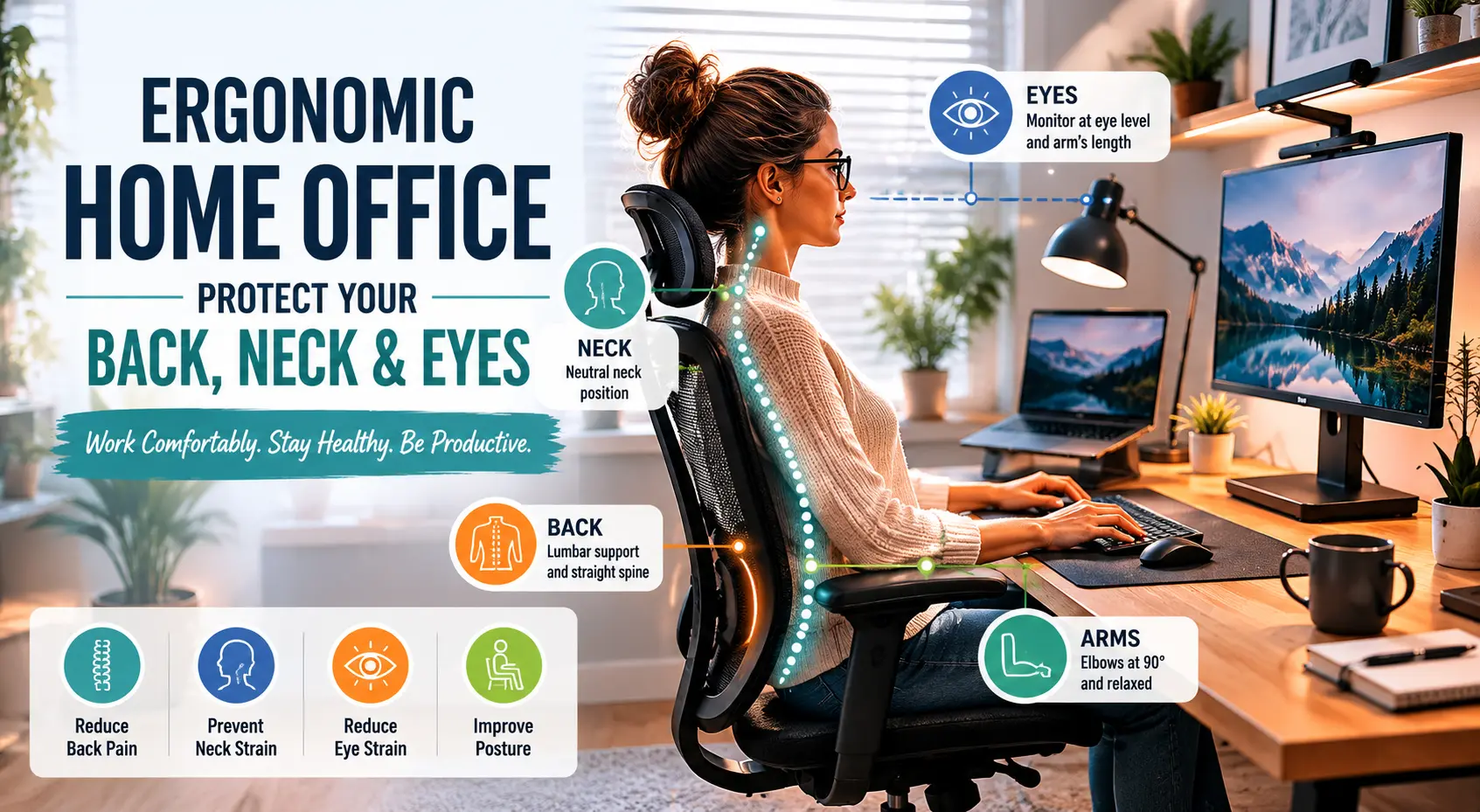
- An ergonomic home office is a workspace deliberately arranged to support the body's natural posture, reducing strain on the back, neck, and eyes during prolonged desk work.
- The 90-90-90 rule — hips, knees, and ankles each at 90-degree angles — is the foundational principle for correct chair and desk height that protects spinal alignment.
- Monitor position is critical for neck health: the top of your screen should sit at or just below eye level, at arm's length away, to prevent "tech neck."
- The 20-20-20 rule (every 20 minutes, look at something 20 feet away for 20 seconds) is the most evidence-backed method to reduce digital eye strain.
- Budget is not a barrier — many ergonomic improvements such as repositioning your monitor or adjusting your chair cost absolutely nothing.
- Even a perfect ergonomic setup fails without intentional movement habits: regular breaks and desk stretches are non-negotiable for long-term spinal health.
- Poor home office ergonomics affects an estimated 40–60% of full-time remote workers, making it one of the most overlooked health risks of remote work.
Most people working from home have spent more time choosing their Wi-Fi router than setting up their workspace — and their body is quietly paying the price. If you've been brushing off that nagging lower back ache or end-of-day headache as "just part of the job," the real culprit is almost certainly your setup, not your workload. In this guide, you'll learn exactly how to configure your chair, desk, monitor, and lighting to protect your back, neck, and eyes — with practical fixes you can implement today, at any budget.
What Is an Ergonomic Home Office — and Why Does It Matter?
Ergonomics is the science of designing a workspace to fit the worker's body, reducing physical stress and the risk of musculoskeletal injury during prolonged activity. An ergonomic home office isn't about having the most expensive chair or a four-monitor setup — it's about intentional alignment between your body and your environment.
The problem with most home offices is that they evolved by accident. A dining chair here, a laptop on the kitchen table there, and suddenly you're spending eight hours a day in a posture that your body was never designed to hold. Unlike corporate offices, which often undergo professional ergonomic assessments, home setups are almost always improvised — and those small misalignments compound over time into real physical pain.
"Ergonomics is the science of designing a workspace to fit the worker's body, reducing physical stress and the risk of musculoskeletal injury during prolonged activity."
Why Home Office Ergonomics Matters More Than You Think
The shift to remote work has created a largely invisible health crisis. When workers moved out of office buildings with adjustable chairs and IT-configured desk setups, they brought their laptops home — but left their ergonomic support behind.
The costs of poor ergonomics extend beyond personal discomfort. Chronic musculoskeletal disorders reduce focus, slow output, and — if left unaddressed — can evolve into conditions requiring medical intervention. The good news: most ergonomic improvements are free or very low-cost, and the results are felt within days.
Quick Win: Before spending any money, simply adjust your monitor and chair height. These two free changes alone can eliminate the majority of back and neck strain for most people.
How to Set Up Your Chair and Desk for Back Health
Your lower back is the first casualty of a bad home office. Sitting on a soft sofa, a kitchen stool, or a chair without lumbar support places the lumbar spine in a C-curve — the opposite of its natural S-curve — for hours at a time. The result: tight hip flexors, compressed discs, and that deep ache that greets you by mid-afternoon.
The 90-90-90 Rule: Your Posture Foundation
The 90-90-90 rule states that for optimal spinal alignment, the hips, knees, and ankles should each be positioned at approximately 90-degree angles while seated at a desk.
🪑 The 90-90-90 Sitting Rule
- 1Hips at 90°: Adjust your seat height so your thighs are parallel to the floor. Your hips should be level with or very slightly higher than your knees.
- 2Knees at 90°: Your feet should rest flat on the floor (or on a footrest). There should be a 2-finger gap between the back of your knee and the seat edge.
- 3Elbows at 90°: With your shoulders relaxed, your forearms should be parallel to the floor when your hands rest on the keyboard. Adjust desk height or armrests accordingly.
- 4Lumbar support: The backrest should press gently against the natural inward curve of your lower back — not the middle of your back.
What If You Don't Have an Ergonomic Chair?
A lumbar support pillow ($15–30) placed at the curve of your lower back can dramatically improve any chair. A rolled-up towel works in a pinch. If you're using a dining chair, ensure it is firm (not padded), and place your laptop or monitor on a stack of books to bring it to the correct height.
Do: Sit With Your Back Against the Chair
Use the full depth of your seat and let the backrest support you. Don't perch on the edge.
Don't: Work From the Sofa
Sofas put the spine in a C-curve and almost always position screens too low, compounding neck strain on top of back issues.
Check: Desk Height
Standard desk height (28–30") suits most people 5'8"–6'2". Shorter or taller? Use a footrest or a monitor arm.
Add: A Footrest
If your feet don't rest flat on the floor after setting seat height, a footrest ($20–40) is not optional — it's essential.
How to Position Your Monitor to Protect Your Neck
Forward head posture — commonly called "tech neck" — occurs when the monitor is positioned too low or too far away, causing the head to tilt forward and placing up to 60 pounds of additional force on the cervical spine. At 15°, the effective load is ~27 lbs. At 60°, it's ~60 lbs. The human head weighs around 10–12 lbs in neutral position.
The Correct Monitor Position
🖥️ Monitor Positioning — The 3 Rules
- 1Height: The top of your monitor should align with your natural eye level (or 1–2 inches below for bifocal users). You should be looking slightly downward at the screen, not up.
- 2Distance: Place your monitor at arm's length — roughly 50–70 cm (20–28 inches) from your eyes. Too close causes eye strain; too far causes forward leaning.
- 3Angle: Tilt the screen back 10–20 degrees. This keeps the screen perpendicular to your line of sight and reduces glare from overhead lights.
Laptops Are Not Ergonomic Workstations
When a laptop sits flat on a desk, the screen is far too low — forcing you to bend your neck downward for hours. The laptop becomes ergonomic only when paired with a laptop stand or monitor arm + external keyboard and mouse.
Laptop Warning: Working on a laptop without a stand is the single most common cause of "tech neck" among remote workers. A basic laptop stand costs $20–40 and is one of the highest-value ergonomic investments you can make.
Dual Monitor Setup Tips
If you use two monitors, position your primary monitor directly in front of you and the secondary slightly to one side. Avoid having both monitors side-by-side at equal angles — this forces constant head rotation. Keep both at the same height.
How to Reduce Digital Eye Strain in Your Home Office
Digital eye strain (also called Computer Vision Syndrome) affects an estimated 50–90% of computer users. Symptoms include dry eyes, blurry vision, headaches, and difficulty focusing — all of which are directly caused by the way most people set up their screens and workspace lighting.
The 20-20-20 Rule: Your Eyes' Best Friend
The 20-20-20 rule recommends that for every 20 minutes of screen time, a person should look at an object at least 20 feet away for a minimum of 20 seconds to reduce eye muscle fatigue. Set a timer. This one habit, done consistently, eliminates the majority of end-of-day eye fatigue for most desk workers.
Screen Brightness
Match your screen brightness to the ambient light in the room. Your screen shouldn't glow like a light source in a dim room, or disappear in bright sunlight.
Avoid Glare
Position your monitor perpendicular to windows — not facing or directly opposite them. Use blinds or curtains to control natural light glare on the screen.
Night Mode / Warm Color Temperature
Use f.lux, Night Shift, or your OS's built-in warm color filter from late afternoon onward to reduce blue light exposure before sleep.
Blink Consciously
We blink up to 60% less when looking at screens. Dry eyes are often a blink rate problem. Make a habit of blinking fully every few minutes.
What About Blue Light Glasses?
The evidence for blue light glasses in reducing eye strain is currently mixed. The American Academy of Ophthalmology does not recommend them specifically for eye strain. The 20-20-20 rule, proper ambient lighting, and correct screen brightness are far more impactful.
The Best Ergonomic Products for Your Home Office (By Budget)
You don't need to spend thousands to build an ergonomic workspace. Here are the highest-impact products across three budget tiers:
| Product Category | Budget Tier | What to Look For | Impact Level |
|---|---|---|---|
| Lumbar Support Pillow | Under $30 | Memory foam, adjustable strap, contoured shape | ⭐⭐⭐⭐⭐ |
| Laptop Stand | Under $40 | Adjustable height, ventilated, stable base | ⭐⭐⭐⭐⭐ |
| External Keyboard & Mouse | Under $50 | Wireless, low-profile keyboard; ergonomic mouse | ⭐⭐⭐⭐ |
| Footrest | Under $40 | Adjustable height & tilt, non-slip surface | ⭐⭐⭐⭐ |
| LED Desk Lamp (Adjustable) | Under $60 | Adjustable color temp, dimmer, no flicker | ⭐⭐⭐⭐ |
| Monitor Arm | $60–$120 | Full motion, VESA compatible, cable management | ⭐⭐⭐⭐⭐ |
| Ergonomic Office Chair | $150–$350 | Adjustable lumbar, armrests, seat depth, recline | ⭐⭐⭐⭐⭐ |
| Sit-Stand Desk | $400–$900 | Electric lift, memory presets, stable frame | ⭐⭐⭐⭐⭐ |
How to Build Healthy Movement Habits Into Your Workday
Even a perfectly configured ergonomic workstation fails without intentional movement. The human body was not designed to hold any single position for extended periods — even a good position becomes damaging when sustained for hours without relief.
🏃 Your Daily Movement Blueprint
- 1Every 20 minutes: Apply the 20-20-20 eye rule. Stand up briefly, shift weight, roll your shoulders.
- 2Every 45–60 minutes: Take a full 2–5 minute movement break. Walk to the kitchen, do a brief stretch routine, or take a phone call standing up.
- 3Twice daily: Perform a 5-minute desk stretch sequence — neck rolls, thoracic rotation, hip flexor stretch, and doorway chest opener.
- 4If using a sit-stand desk: Alternate between sitting and standing in 30–60 minute blocks. Standing all day is not the goal — variation is.
Free tools like Stretchly (desktop app), Time Out (Mac), or even a simple phone timer make micro-break habits automatic. Don't rely on willpower — schedule the movement.
Your Ergonomic Home Office Setup Checklist
Use this checklist to audit your current setup. Every unchecked box is an opportunity to reduce pain and improve your workday.
Complete Ergonomic Setup Checklist
Your Full Setup Audit🪑 Desk & Chair
- Chair height adjusted (90-90-90 rule)
- Lumbar support in place
- Armrests at elbow height
- Footrest if feet don't touch floor
- Sit-stand desk or desk at correct height
- Anti-fatigue mat (if standing desk)
🖥️ Monitor & Neck
- Top of screen at or below eye level
- Monitor at arm's length distance
- Screen tilted back 10–20 degrees
- Laptop on stand with external keyboard
- Monitor arm for full adjustability
- No neck forward-tilt when working
👁️ Eyes & Lighting
- 20-20-20 rule reminder set
- Screen brightness matched to room
- Monitor not facing a window
- Adjustable desk lamp positioned left
- Blue-light filter active in evenings
- No glare or reflections on screen
Frequently Asked Questions
Small Adjustments, Long-Term Health
You don't need a $2,000 chair or a purpose-built studio to protect your body. Ergonomic health is cumulative — a series of small, correct decisions that compound into years of pain-free, productive remote work. Start with one fix today. Adjust your monitor height. Set a 20-minute eye break timer. Add a rolled-up towel as lumbar support.
📋 Download the Free Setup Checklist
Add a Comment